Set up the HubSpot MessageBlue Integration
The MessageBlue HubSpot integration is in private beta and is not enabled on every account yet. Ask your MessageBlue administrator or support team for access.
Setup has three stages: install MessageBlue in HubSpot, connect your portal from MessageBlue, then confirm the channel appears in your Inbox. You do all three once per MessageBlue app.
Both halves are required. Installing the app in HubSpot does not by itself link it to your MessageBlue app, and connecting from MessageBlue cannot succeed until the app is installed. Stopping after Step 1 is the most common reason status stays Not connected.
1. Install MessageBlue in HubSpot
Sign in to the right portal
Sign in to the HubSpot portal your team actually works in. If you administer several portals, confirm which one you are in before installing — the portal you install into is the one you must authorize in Step 2.
Install the app
Either search for MessageBlue in the HubSpot Marketplace, or use the install link provided by your MessageBlue contact.
Review and authorize
Review the requested permissions — see the scope list for what each one is for — and click Connect app / Authorize.
After install, MessageBlue appears in HubSpot under Settings → Integrations → Connected Apps, and becomes available as a channel in Conversations.
2. Connect HubSpot from MessageBlue
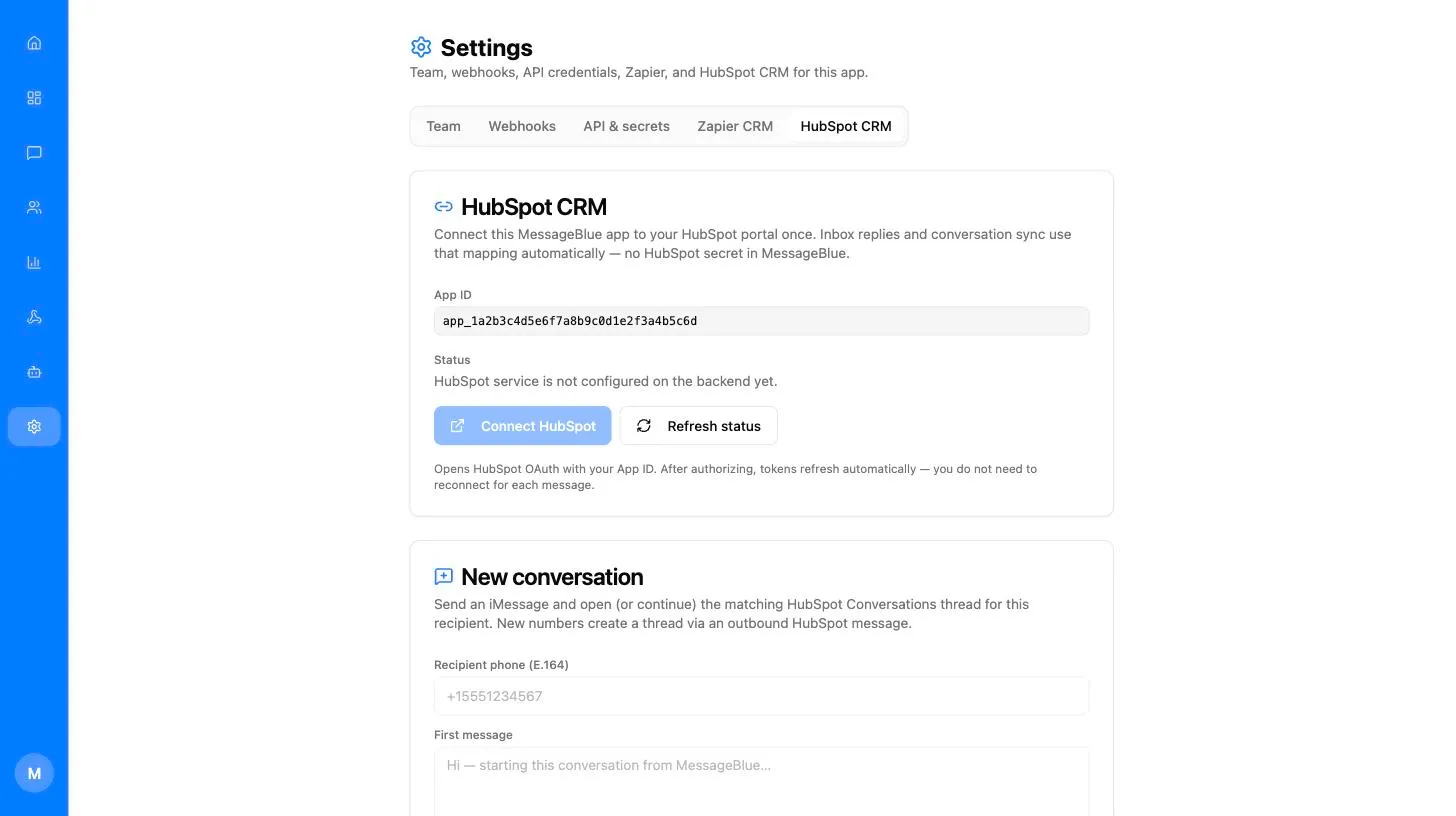
Open Settings → HubSpot CRM
Sign in to the MessageBlue web app, open Settings from the left rail, and select the HubSpot CRM tab.
Check your App ID
The App ID shown is the MessageBlue app you are about to link. If you administer more than one app, confirm this is the right one — quote it if you contact support.
Click Connect HubSpot
The button opens HubSpot’s authorization screen in a new browser tab. A toast confirms: “Complete HubSpot authorization — after you finish in HubSpot, return here.”
Status should now read Connected, with your Portal ID and, once HubSpot has assigned one, the channel account and its phone number.
The same button becomes Reconnect HubSpot once you are connected. It is not a separate control — use it to move this app to a different portal, or to repair a connection after uninstalling in HubSpot.
3. Confirm the channel in your Inbox
If MessageBlue never appears in the channel list, the channel is not enabled for your install — contact MessageBlue support rather than reinstalling repeatedly.
Day to day
A customer texts you
The message arrives on your MessageBlue number, appears in HubSpot Conversations under MessageBlue, and is marked Incoming. Reply in the thread as you would on any other channel; the customer receives it as an iMessage.
You start the conversation
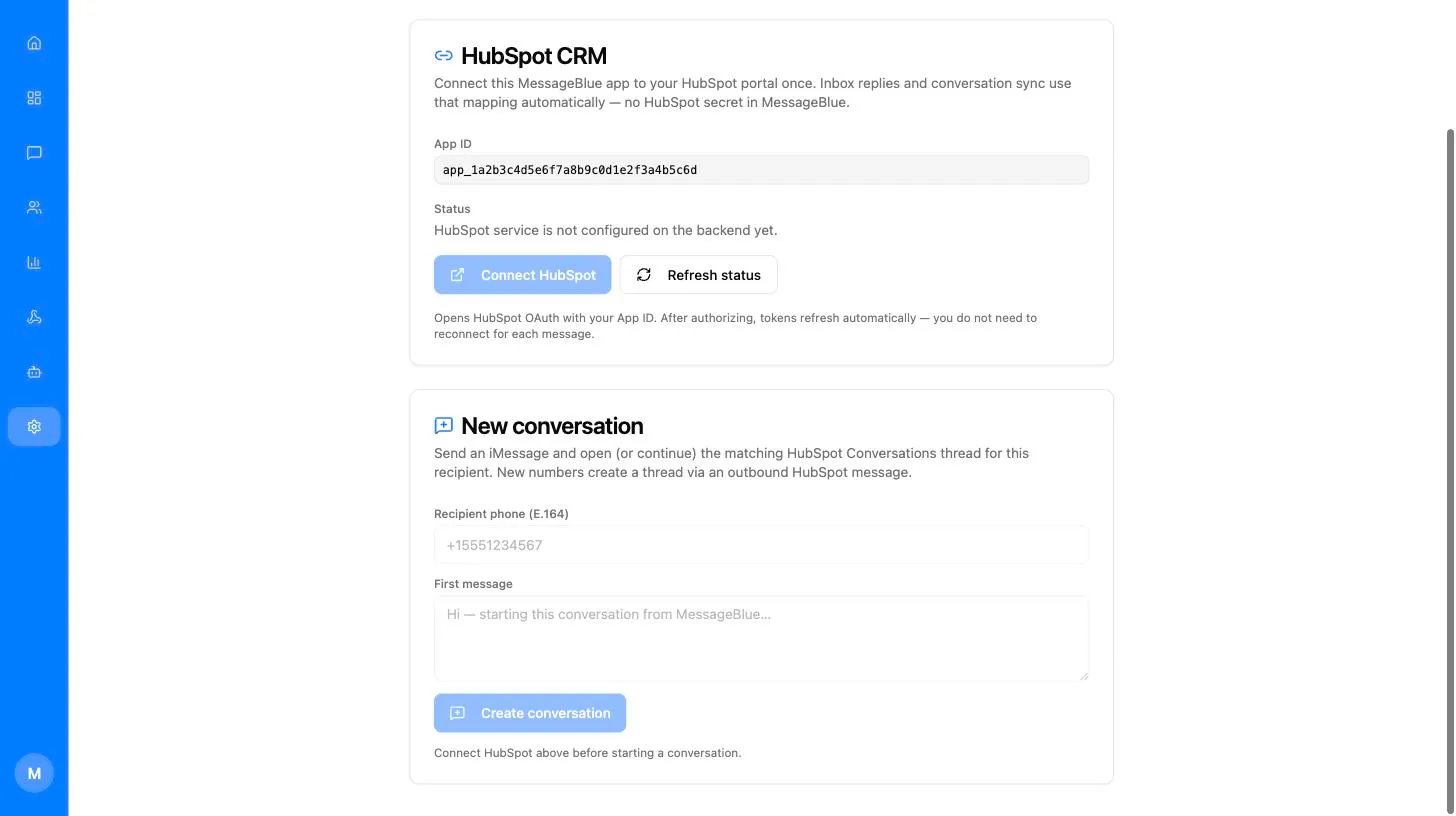
Phone numbers must be entered in E.164 format — a leading +, the country code, then the national number, with no spaces, dashes or brackets. For example +15550109988. The app rejects anything else before it reaches the gateway.
Switching portals or reconnecting
Quick test
Once status reads Connected, prove all three directions in order — each one isolates a different failure:
If step 1 delivers the iMessage but HubSpot stays empty, wait a few seconds and refresh the Inbox, then check the MessageBlue channel is not filtered out of your view. If nothing arrives at the phone at all, the agent is offline — that is a MessageBlue problem, not a HubSpot one.