The MessageBlue dashboard
Documented against the v0.2.0 production release of the MessageBlue web app, captured on 2026-08-05. Screens were captured from a deployment running the identical build — message-blue-dev and message-blue-main were the same commit at that release.
The HubSpot CRM screens are newer: captured 2026-08-12 from message-blue-dev, which is ahead of production while that integration is in private beta.
Screenshots in this guide come from a real MessageBlue account with real traffic, captured against the same build that runs in production. Phone numbers, email addresses and personal names in them have been replaced with placeholders — anything of the form +1555010… or @example.com is substituted, not live data.
The MessageBlue web app is where you configure everything the API and the AI agent do on your behalf. It is a single-page app served at app.messageblue.ai, and it talks to two backends: the gateway at api.messageblue.ai for messaging, and the application backend at backend.messageblue.ai for everything else.
You never have to use the web app — every messaging operation it performs is available over the API. But three things are only available here: creating an app and its credentials, configuring the AI agent, and requesting phone numbers.
What you can do here
How the pieces fit together
An app in MessageBlue is the unit that owns everything else. One account holds one app, and that app owns its credentials, its phone numbers, its conversations, its AI agent and its webhooks.
You create an app
Signing in for the first time drops you at app setup, which mints an Account ID, an App ID and an App Secret. The secret is shown exactly once.
A phone number gets attached
Either you pair a Mac you already own running the MessageBlue agent, or you request a number and the team provisions one for you. Until an app has a number it can receive nothing and send nothing.
Messages flow both ways
Inbound iMessages arrive through the Mac agent, land in the Messages inbox, and are POSTed to your inbound webhook. Outbound messages come from the composer, from the API, or from the AI agent.
Optionally, an agent replies for you
If you deploy an agent in AI Agent Studio, it answers incoming messages automatically using your prompt, your uploaded knowledge and any connected integrations.
Every screen at a glance
The left rail is the primary navigation once an app is open. It is present on every screen below except sign-in and app setup.
/c/connect is the one route in this list that is not for you. It is a tokenised link you send to a customer so they can authorise their own Google Calendar, CRM or similar for the agent to act on. It requires no MessageBlue login. See Connect your accounts.
Getting around
The left rail carries eight icons. Top to bottom they are Apps, Dashboard, Messages, Group chats, Analytics, Failed webhooks, AI Agent and Settings — the same order as the table above.
Your account menu
The avatar at the bottom of the rail opens the account menu. It shows who you are signed in as with your role badge, and it is where the appearance controls live.
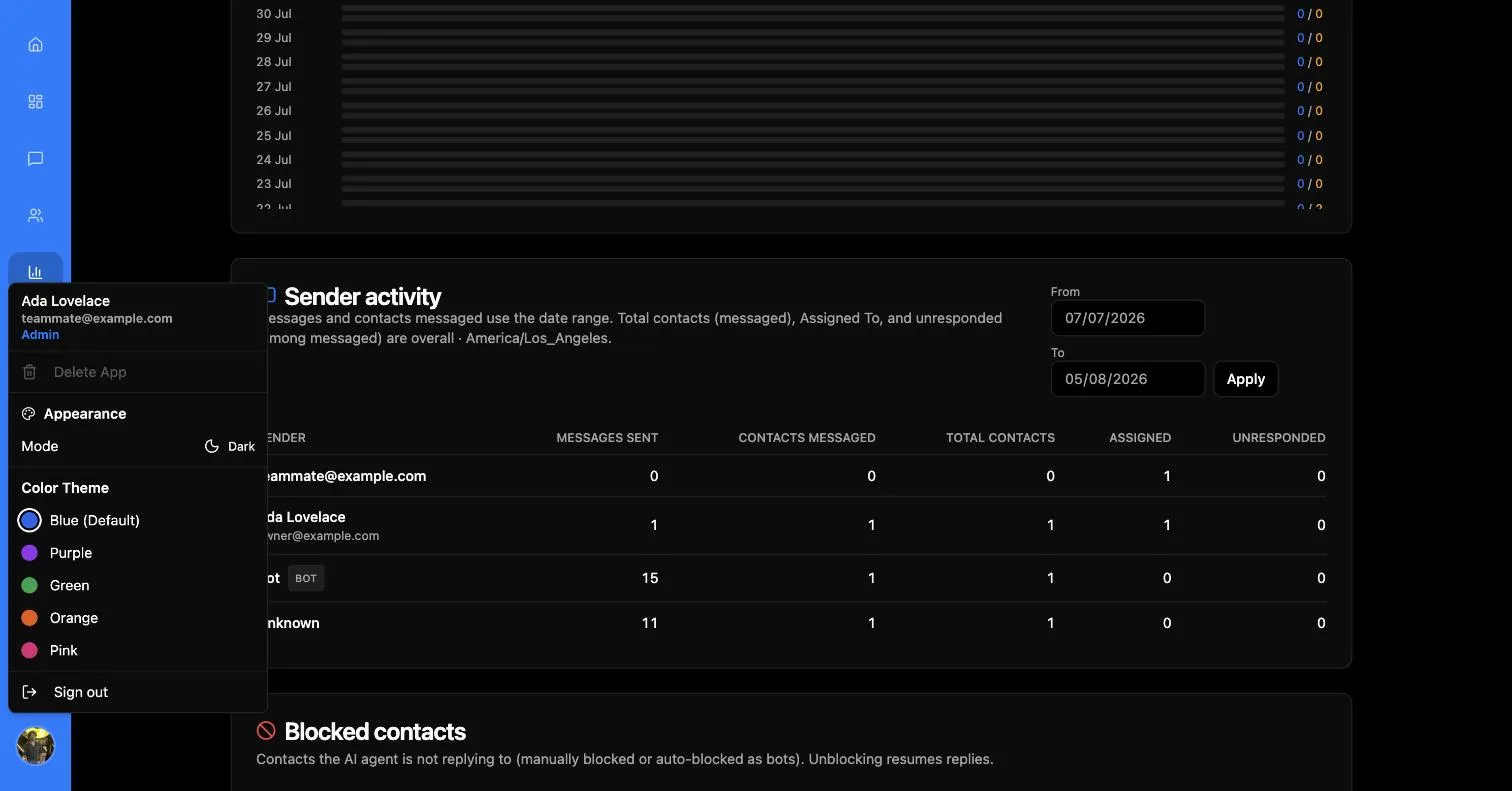
Delete App appears in this menu but is permanently disabled — there is no self-service way to delete an app in this release. Ask the MessageBlue team if you need one removed.
Every screenshot in this guide was taken in Dark mode with the default Blue theme, which is what a new account gets. If your app looks different, check this menu before assuming something is wrong.
Roles
Every member of an app is either an admin or a team member. The difference is narrow but real: only admins can revoke a device’s access from Analytics. Members see the same screens otherwise.
Roles are managed in Settings → Team.