
Creating your app
An app is the container for everything else in MessageBlue: credentials, phone numbers, conversations, the AI agent, webhooks and team members all belong to one app.
Choosing an app
/apps lists what the account owns, with the signed-in email beside the heading. Each row shows the app’s name, its industry and its App ID. Selecting one opens its dashboard.
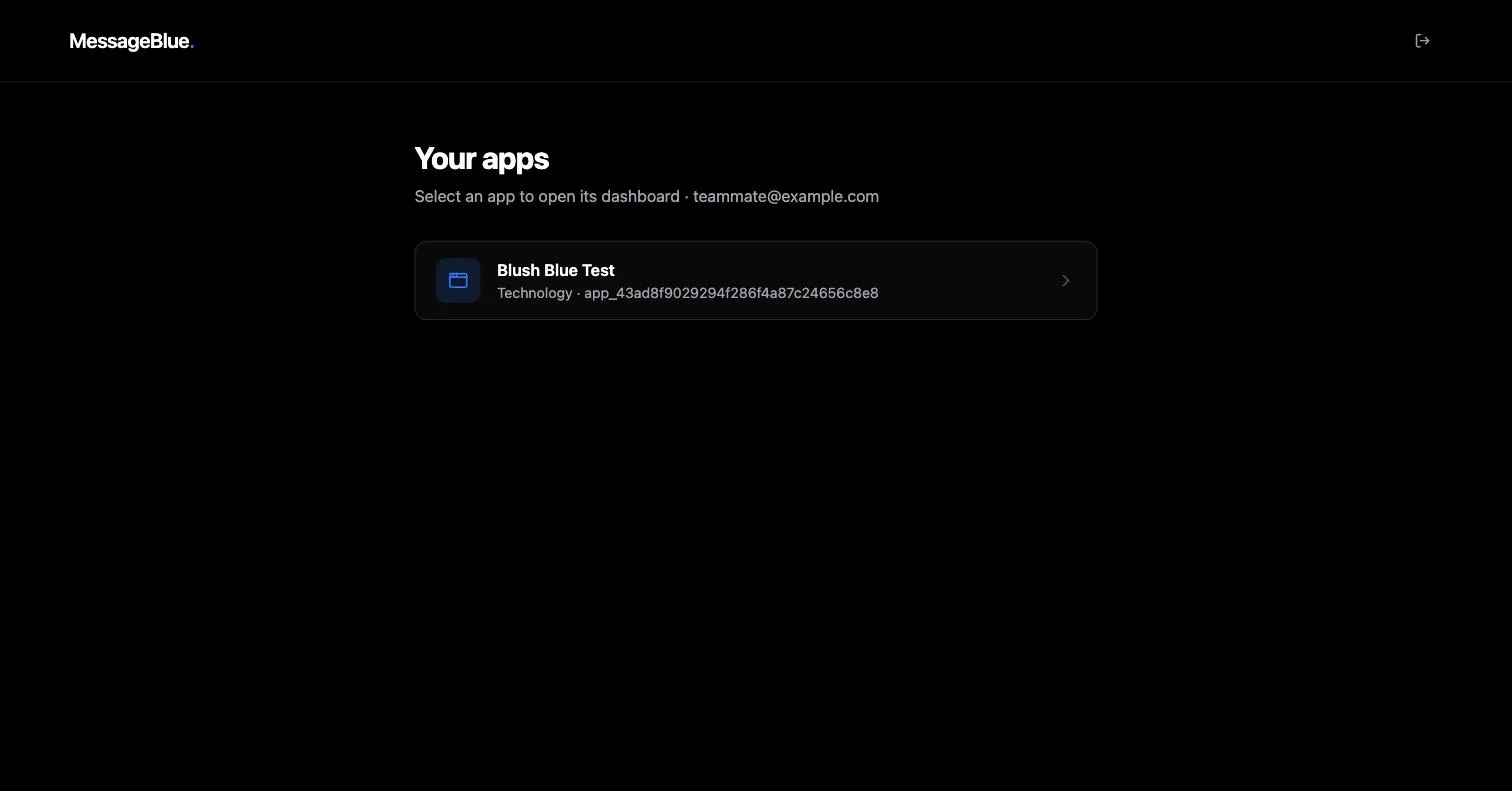
This screen has no left rail — it sits outside an app, so the only other control is sign out in the top-right corner.
An account supports one app. The Create app button only appears while you have none; once an app exists it is removed rather than disabled, so there is nothing to press. If you need a second app, use a separate account.
Creating the app
App setup asks for only two things.
Pressing Create app provisions the app and immediately reveals its credentials.
Your credentials
Three values appear together in a highlighted panel headed “Copy this secret now. It is shown only once.”
The App Secret is never displayed again. Copy it into your secret store before you leave this screen. If you lose it, you are not locked out — you can mint a replacement with Regenerate secret in Settings → API & secrets — but the old secret stops working the instant you do, and anything still signing with it starts failing.
Continue to dashboard takes you to the dashboard.
Getting a phone number attached
A freshly created app cannot send or receive anything yet, because no iMessage-capable number belongs to it. The dashboard shows a dismissible Getting started card offering three ways forward — “Three ways to get a working setup — pick whichever fits, you can change later.”
Before the three options, the card asks you to finish your details: First name, Last name and Business name. These identify you to the team that provisions numbers and reaches out about billing.
Bring your own number
Pair an iMessage-capable Mac you already own. You install the packaged MessageBlue agent on it, sign in, and the Apple ID number on that device starts sending and receiving through MessageBlue.
This is the fastest path if you already have a Mac and a number you want to use, and it is the only path where you keep physical control of the device.
Request a number from us
Prefer not to run your own device? Ask for an iMessage-capable number and the MessageBlue team provisions one for this app.
Requests are made from the Phone numbers card on the dashboard: you say how many numbers you need and optionally add a note. Typical turnaround is 3–5 business days, and the team confirms before anything is assigned.
Test the API first
The same Mac agent setup doubles as a sandbox. Point the API at it and exercise send, receive and webhooks before you put real traffic through.
The View API credentials shortcut jumps straight to Settings → API & secrets.
Once you have completed setup, the card can be dismissed with the ✕ in its corner. Dismissing it is permanent for that app; the same information lives on in the dashboard cards and this documentation.