Settings
Settings holds “Team, webhooks, API credentials, Zapier, and HubSpot CRM for this app.” across five tabs. All five are always present — none is gated on a feature flag.
Team
Invite a member takes an email address and a role:
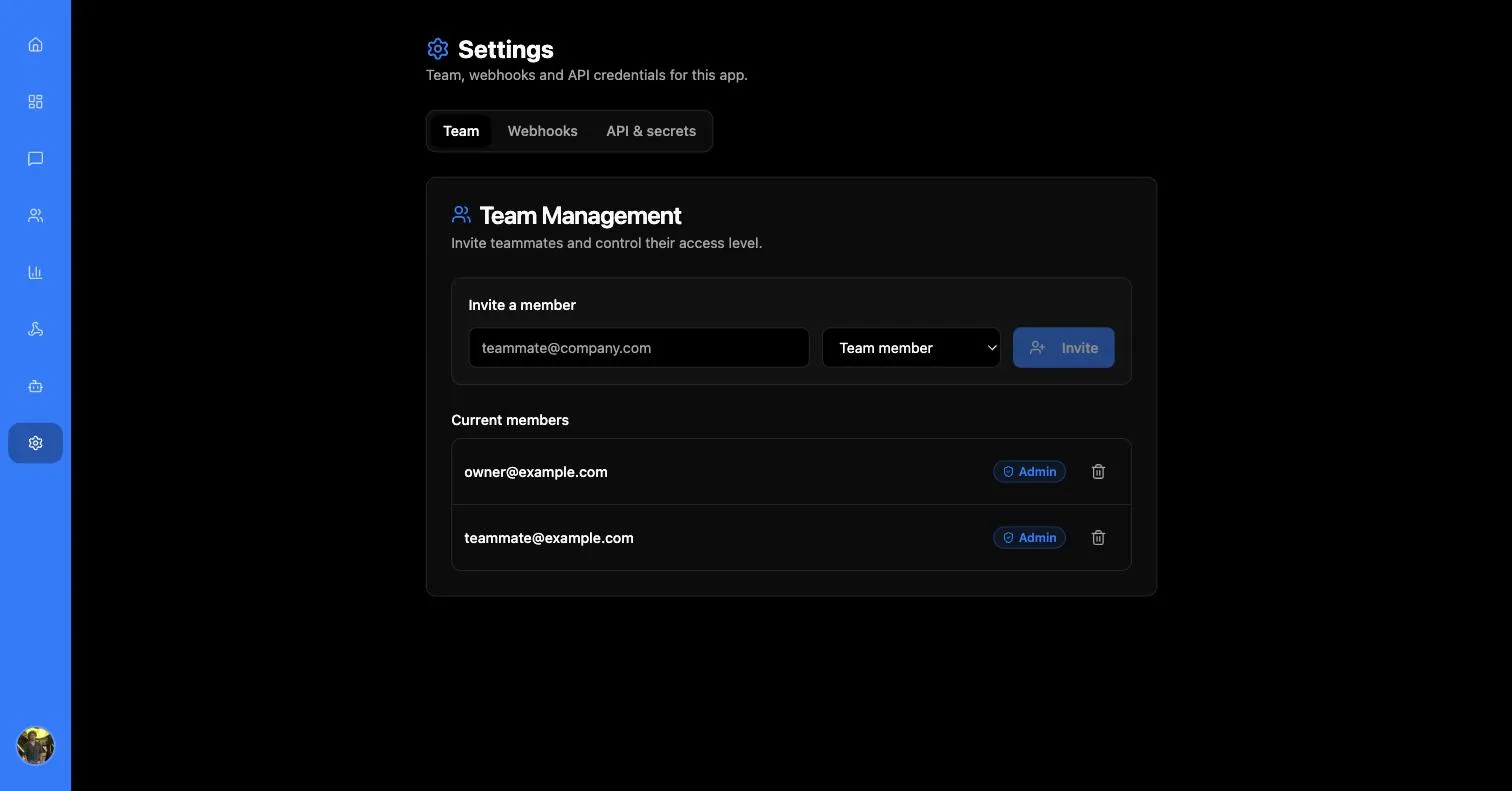
Current members are listed below, each removable, with their role shown as a badge. Inviting an address is also what lets that person past the Access Denied screen — an account that authenticates but was never invited cannot reach the app.
Webhooks
Where MessageBlue delivers events to your server. Two independent URLs:
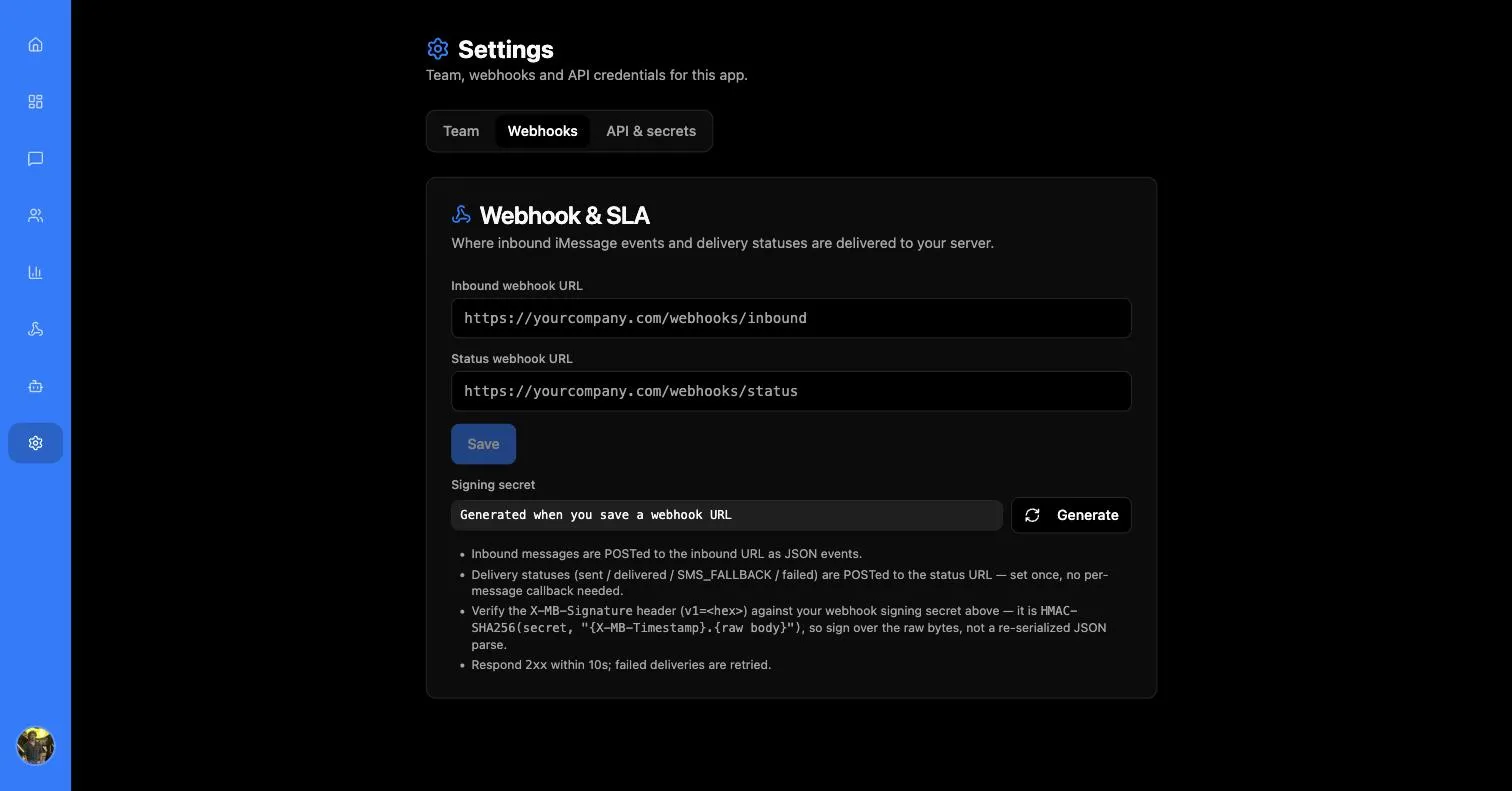
The two URLs are saved together with Save. The Signing secret field sits below them and reads “Generated when you save a webhook URL” until one exists — the Generate button beside it mints one.
Verifying the signature
Every delivery carries an X-MB-Signature header so you can prove it came from MessageBlue:
The hex value is:
Sign over the raw request bytes, not a re-serialized JSON parse. Parsing and re-encoding JSON reorders keys and changes whitespace, which produces a different digest and a signature that never matches. Capture the body before your framework touches it.
The signing secret is generated the first time you save a webhook URL. Like the app secret it is shown once, and Regenerate mints a new one that takes effect immediately — update your server before the next event arrives.
The delivery contract
Respond 2xx within 10 seconds. Anything else counts as a failure and is retried. Do the minimum in the handler — acknowledge, queue, and process out of band. Deliveries that exhaust their retries are dead-lettered and listed in Failed webhooks, where you can inspect and replay them.
API & secrets
The three values that identify and authenticate your app:
The secret signs HMAC requests to the messaging API — see the API reference for how to construct a signed request, or try one in the API Console.
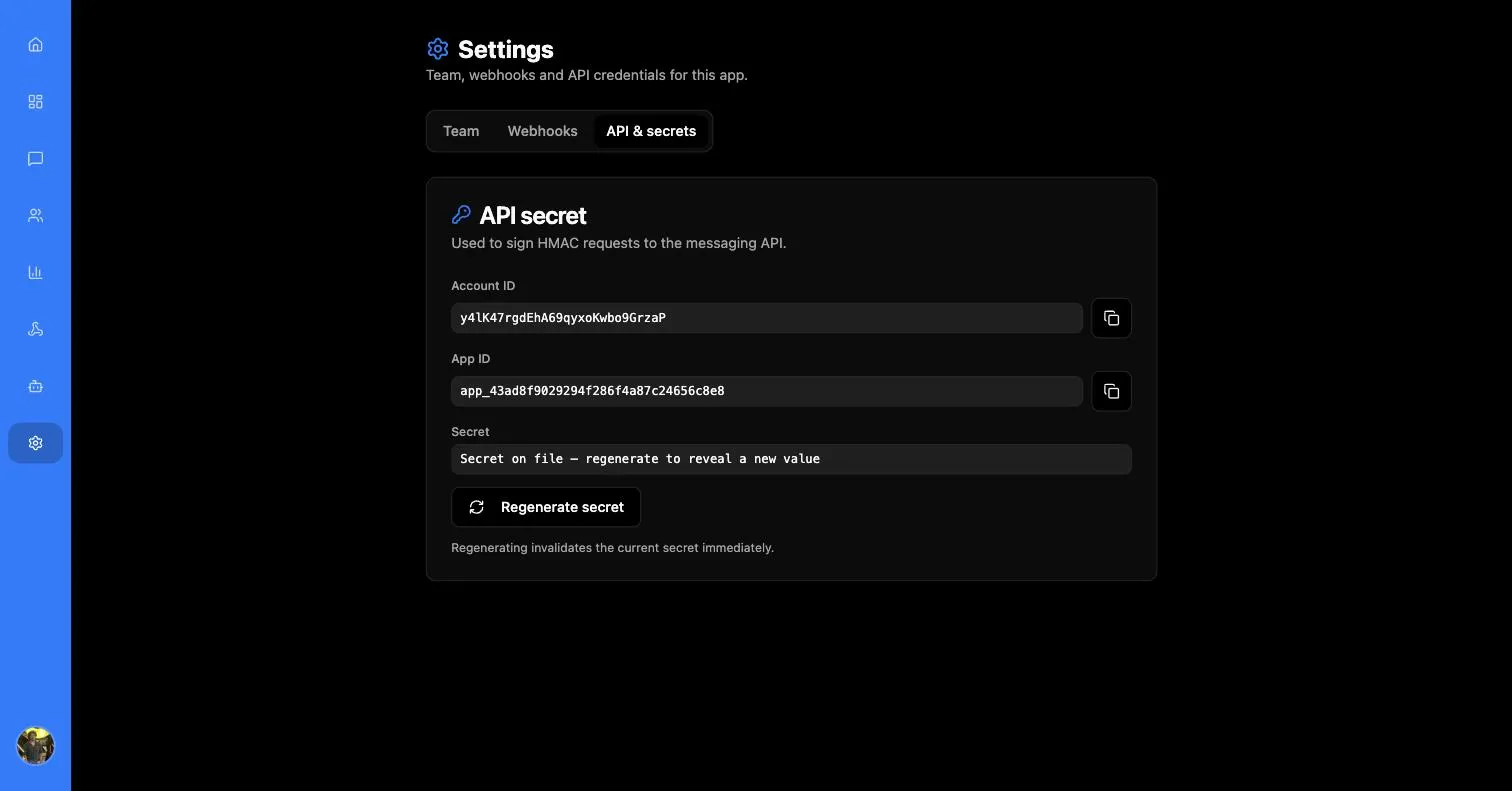
Account ID and App ID each have a copy button. The Secret field is not a masked value you can reveal — the secret genuinely is not stored anywhere retrievable, which is why the field explains itself rather than offering an eye icon.
Regenerating
Regeneration is immediate and has no grace period:
The current secret stops working immediately. Any server still signing requests with it will start failing, so roll the new value out before regenerating.
Have the deployment ready to accept the new value before you press the button, not after.
The confirmation spells out the consequence and colours the destructive action red:
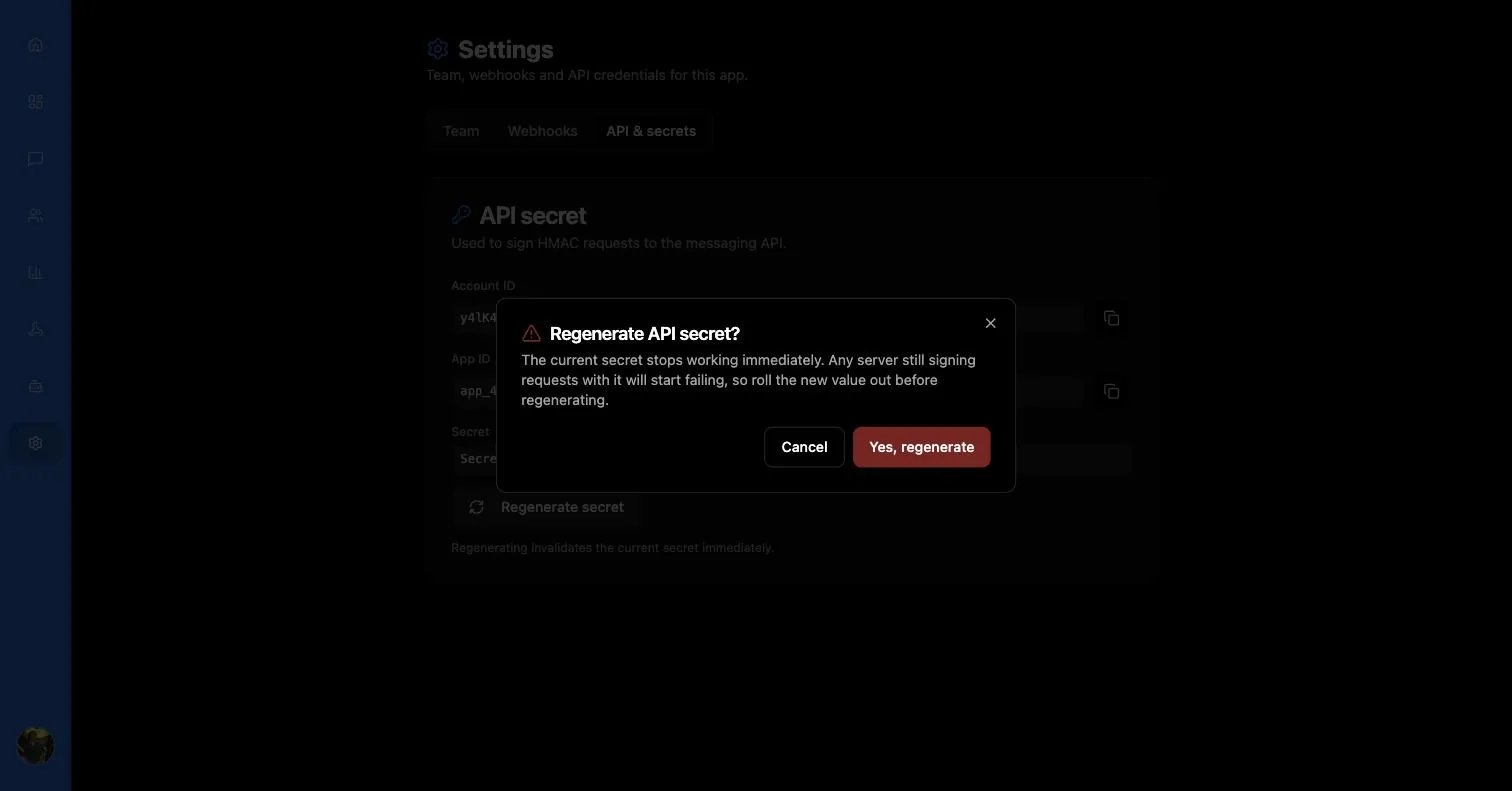
The replacement is displayed once afterwards, in a dialog with a Copy secret button. There is no way to retrieve it later — losing it means regenerating again.
The webhook signing secret has an identically-shaped confirmation, with the same immediacy: “Your current webhook signing secret stops working immediately.”
Zapier CRM
The fourth tab. It describes itself plainly:
Connect MessageBlue to Zapier using your App ID and a dedicated Zapier secret. Use these in your Zapier Platform app connection fields.
It shows three values and one control:
Generate Zapier secret creates one; once it exists the button becomes Regenerate Zapier secret.
The Zapier secret is separate from the App Secret on the API & secrets tab and from the webhook signing secret. Rotating one does not affect the others — but rotating the Zapier secret does break every live Zap until each connection is updated:
The current Zapier secret stops working immediately. Any active Zaps using it will fail until you update the connection.
Like every other secret in MessageBlue, it is displayed exactly once, with the reminder “Copy it now — it is shown only once. Paste into your Zapier connection as the API key / secret field.”
For what to do with these values, see Set up Zapier.
HubSpot CRM
The HubSpot CRM tab is in private beta and is not enabled on every account yet. Ask your MessageBlue administrator or support team for access.
The fifth tab links this MessageBlue app to a HubSpot portal, so iMessage conversations appear in HubSpot Conversations. It describes itself as:
Connect this MessageBlue app to your HubSpot portal once. Inbox replies and conversation sync use that mapping automatically — no HubSpot secret in MessageBlue.
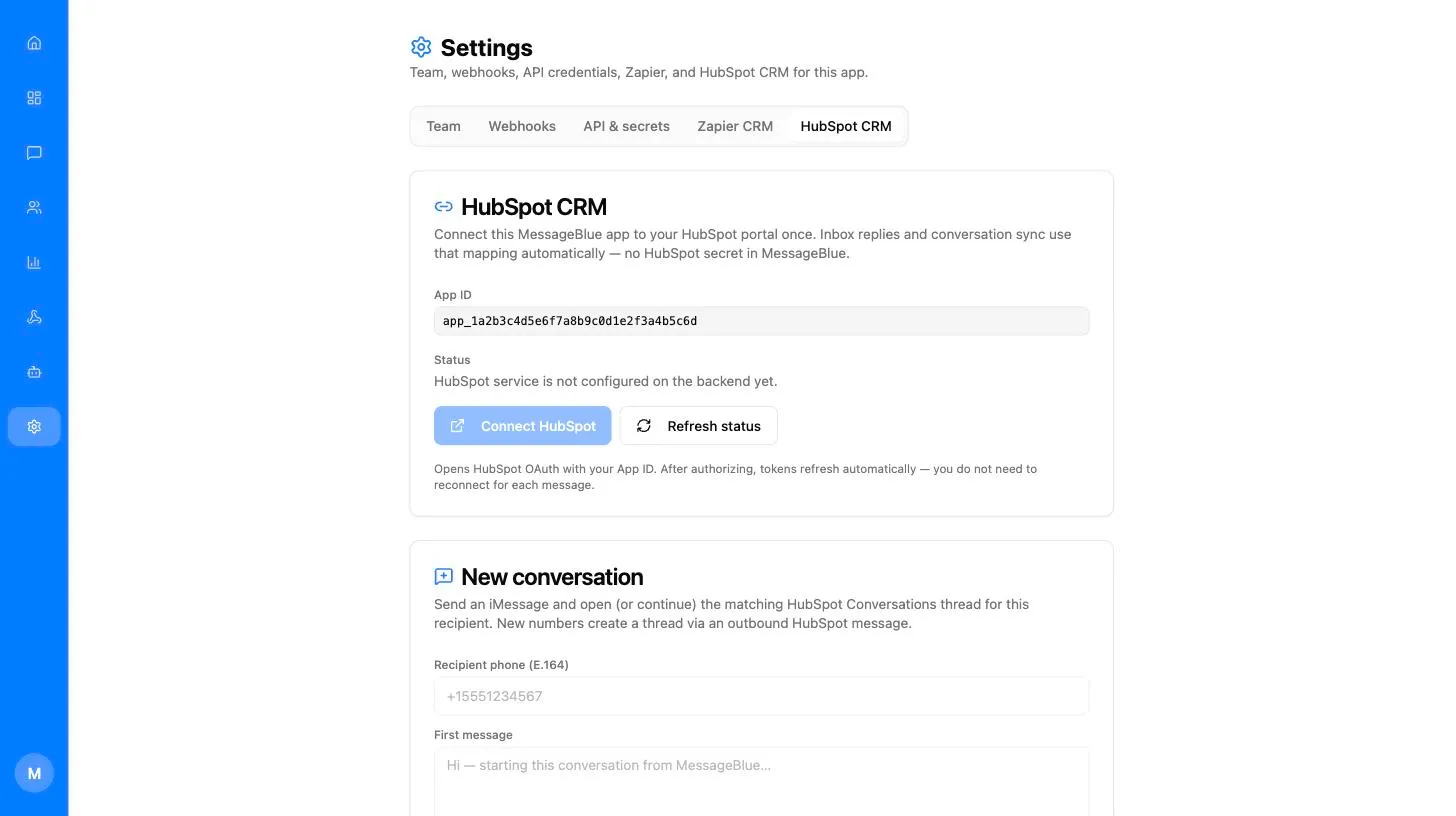
Unlike Zapier CRM, there is nothing to copy — no secret is generated and none is pasted. The tab shows two values and two controls:
Connect HubSpot opens HubSpot’s authorization screen in a new tab; the same button reads Reconnect HubSpot once a portal is linked. Refresh status re-reads the connection — though status also refreshes by itself whenever you return to the MessageBlue tab.
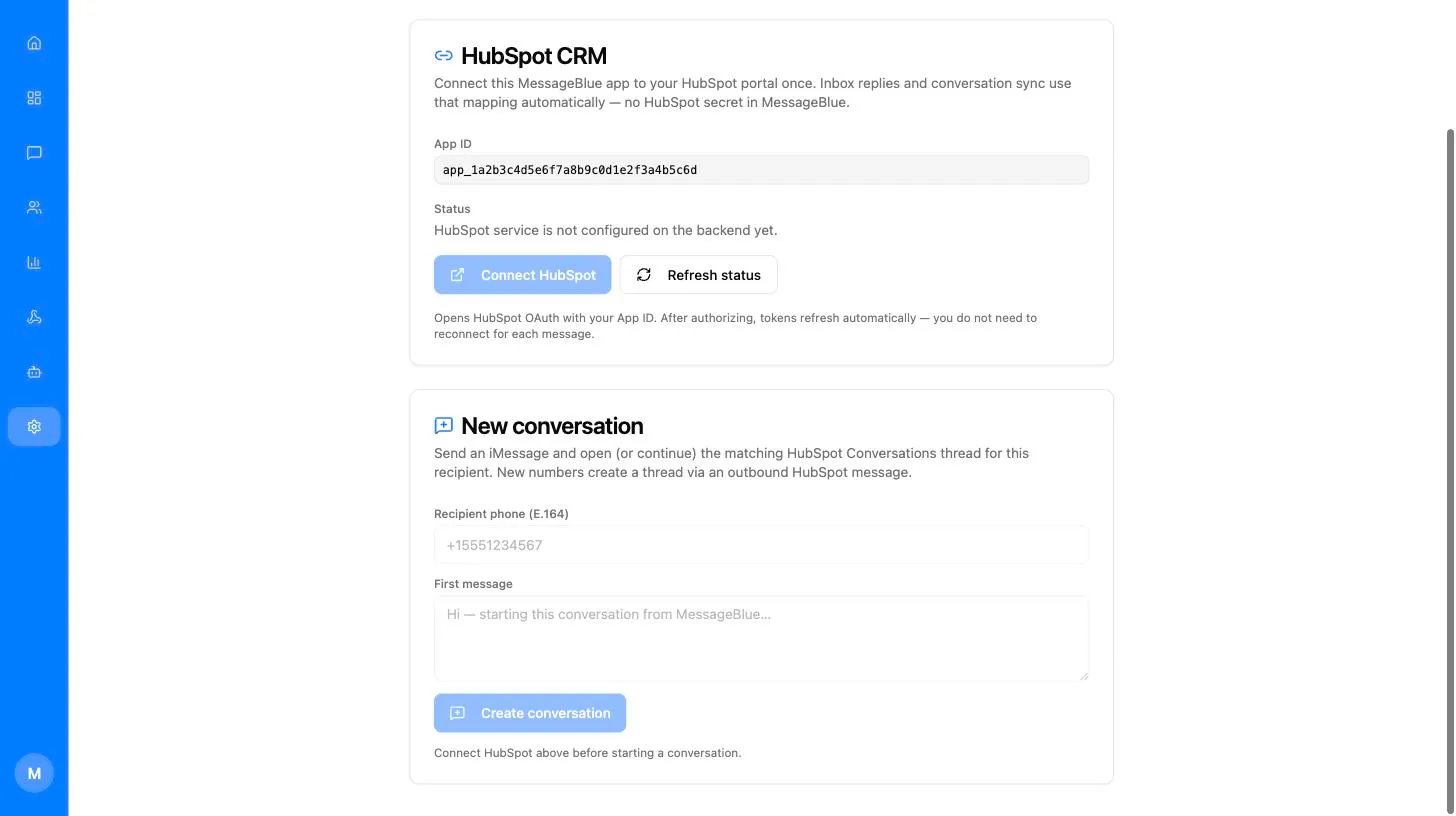
Below it, New conversation sends an iMessage and opens or continues the matching HubSpot thread. Its fields stay disabled until a portal is connected.
For the full flow, see Set up HubSpot.