AI Agent Studio
Model, prompt, knowledge, integrations, testing and activity — everything the agent needs
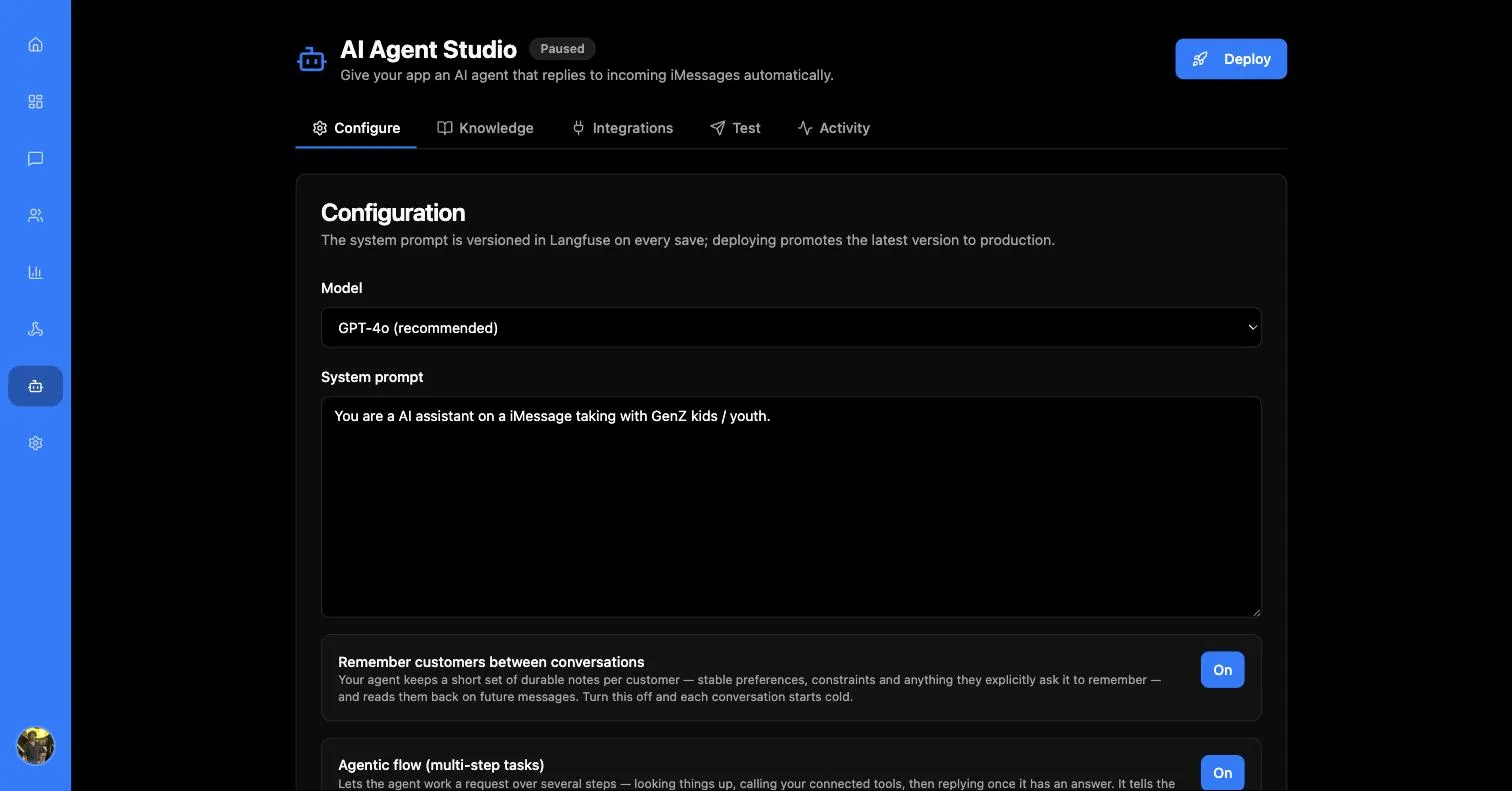
AI Agent Studio is where you “give your app an AI agent that replies to incoming iMessages automatically.” It is organised as five tabs — Configure, Knowledge, Integrations, Test and Activity — and a status badge with a deploy control that sits above all of them.
Configure
Model
A single dropdown chooses the model behind every reply. The catalogue spans five families:
GPT-4o is marked recommended and is the sensible default. The (faster) variants trade some quality for latency and cost — worth considering because a customer is waiting on the other end of a text message.
System prompt
The instruction set that defines your agent’s job. The placeholder shows the expected shape:
Every save versions the prompt in Langfuse, and deploying promotes the latest version to production. You therefore have a full history of prompt changes, and saving a prompt is safe — it does not change what live customers see until you deploy.
Memory
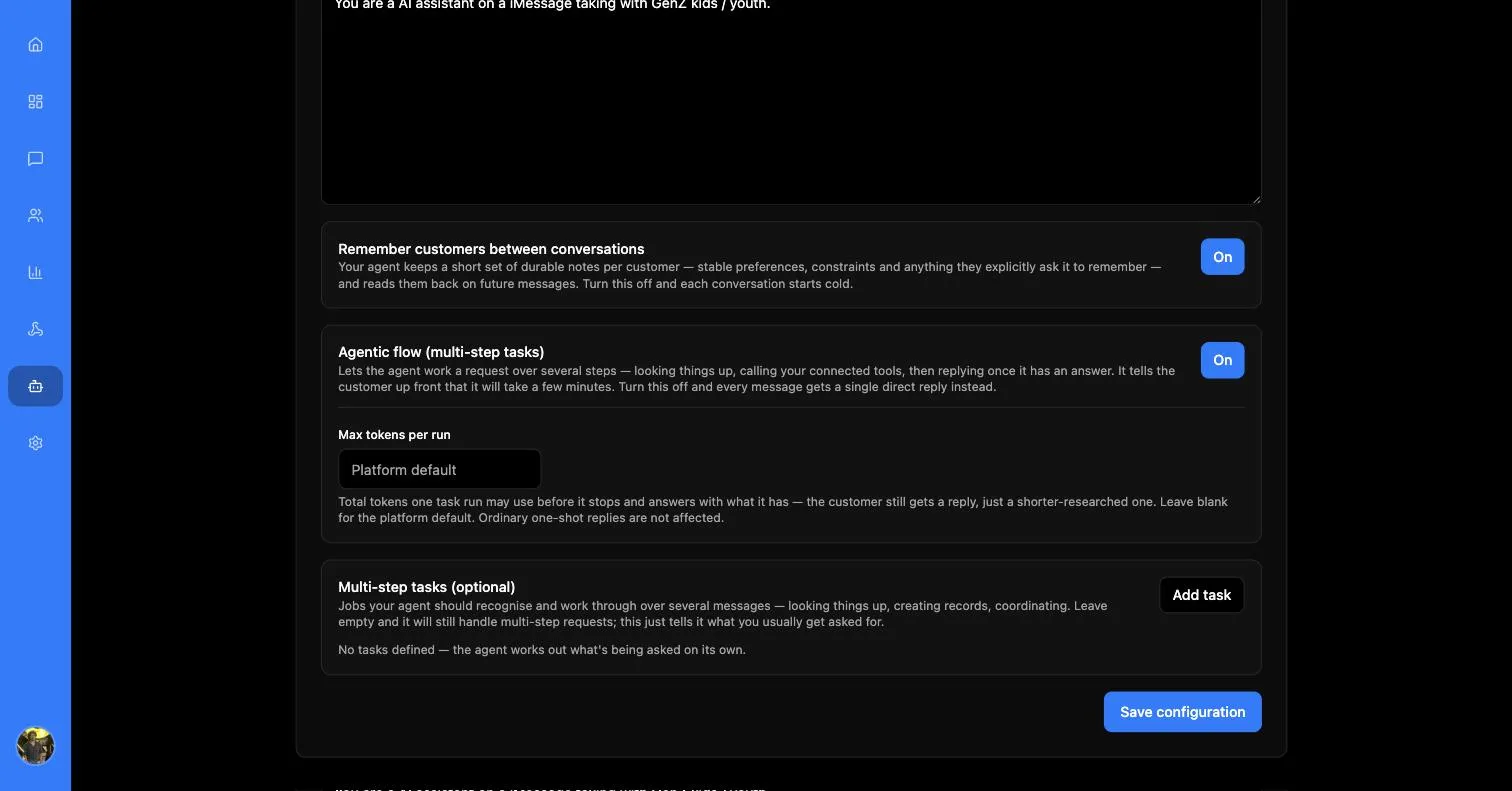
Remember customers between conversations:
Your agent keeps a short set of durable notes per customer — stable preferences, constraints and anything they explicitly ask it to remember — and reads them back on future messages. Turn this off and each conversation starts cold.
Turning it off is non-destructive: existing notes are kept, just not read or added to, and turning it back on restores them. Use it as a switch, not a delete.
Agentic flow
Agentic flow (multi-step tasks):
Lets the agent work a request over several steps — looking things up, calling your connected tools, then replying once it has an answer. It tells the customer up front that it will take a few minutes. Turn this off and every message gets a single direct reply instead.
That “tells the customer up front” behaviour matters: a multi-step run is slow by nature, so the agent acknowledges the request before disappearing to work on it. Leave the switch off for straightforward question-and-answer, where it only adds latency and cost.
Max tokens per run:
Total tokens one task run may use before it stops and answers with what it has — the customer still gets a reply, just a shorter-researched one. Leave blank for the platform default. Ordinary one-shot replies are not affected.
Hitting the cap is a soft landing, not a failure — the agent stops researching and answers with what it has. The customer always gets a reply. Two things follow: the ceiling is genuinely safe to set low while you are calibrating cost, and the cap applies only to agentic runs, so ordinary one-shot replies are never affected by it.
Multi-step tasks
Optionally, name the jobs the agent is expected to handle. Each task has a name and a goal:
Rows are added with Add task or the + on the last row, and removed with the bin icon.
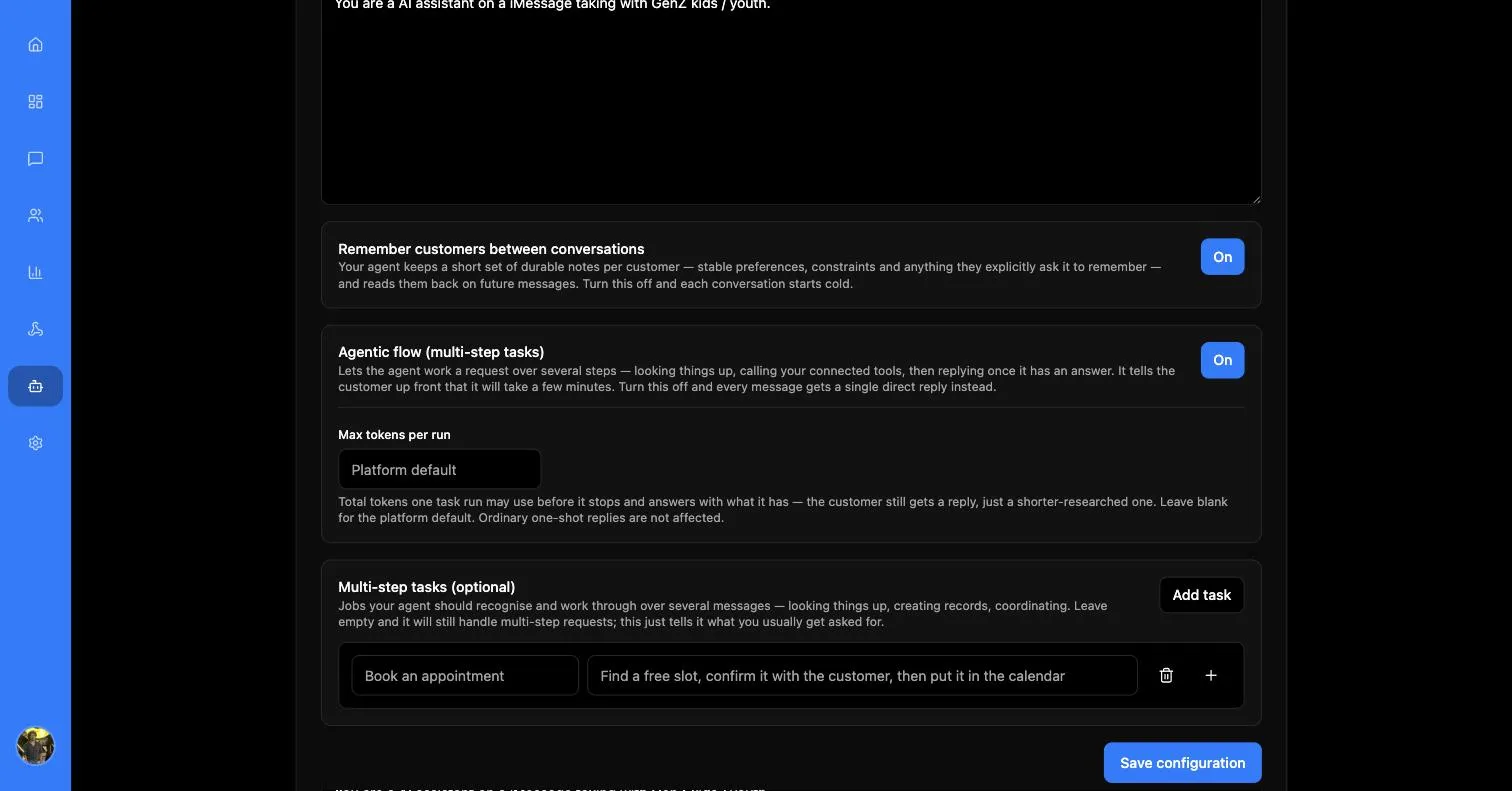
The two fields carry their own examples as placeholders, which is the clearest guidance on how specific to be: a short recognisable name, and a goal written as the sequence of steps you expect.
Defining tasks is genuinely optional — with none defined, “the agent works out what’s being asked on its own.” Define them when you want predictable handling of your most common requests.
Nothing on this tab takes effect until Save configuration, which confirms with “Agent configuration saved. Prompt versioned in Langfuse.”
Deploying
Saving and deploying are deliberately separate.
Pausing is the fastest way to stop an agent that is behaving badly — faster than editing the prompt, and reversible.
Knowledge
Knowledge is what the agent retrieves from to ground its replies: “Menus, price lists, FAQs, and website content.” Without it, the agent knows only what is in the system prompt.
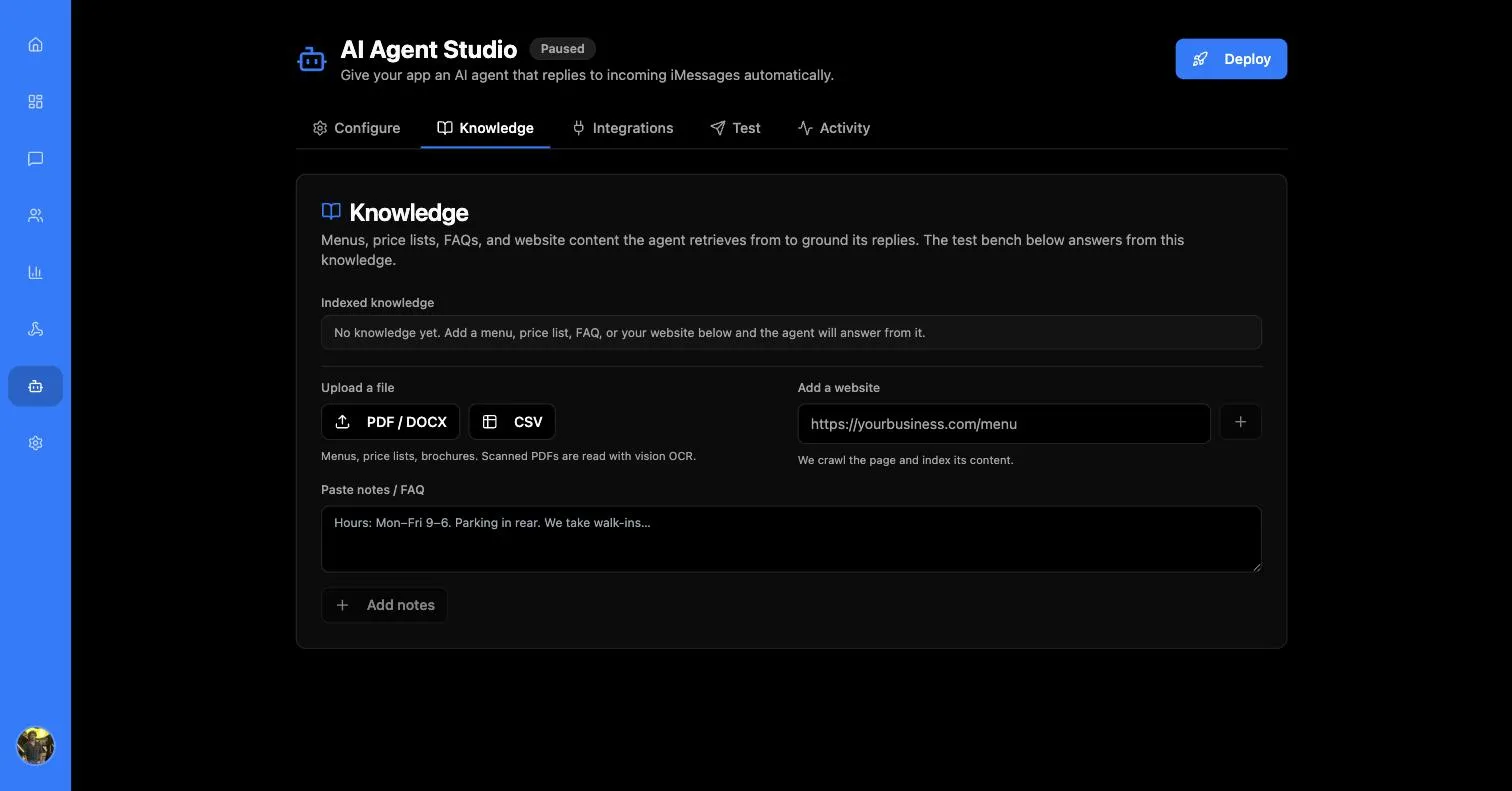
Everything you add appears under Indexed knowledge. Indexing is asynchronous — a website shows “We are crawling and indexing it now.” and pasted text “Your text is being indexed.” — so a newly added source takes a moment before the agent can answer from it.
Removing a source deletes both the source and what was indexed from it: “Asset and its indexed content were deleted.”
Integrations
Integrations connect your business apps through unified.to OAuth so the agent can answer from live data rather than static documents. Each service can be connected in one of two fundamentally different ways, and the app asks which one you want:
You are asked this every time you enable a service — the choice is per provider, not a global setting:
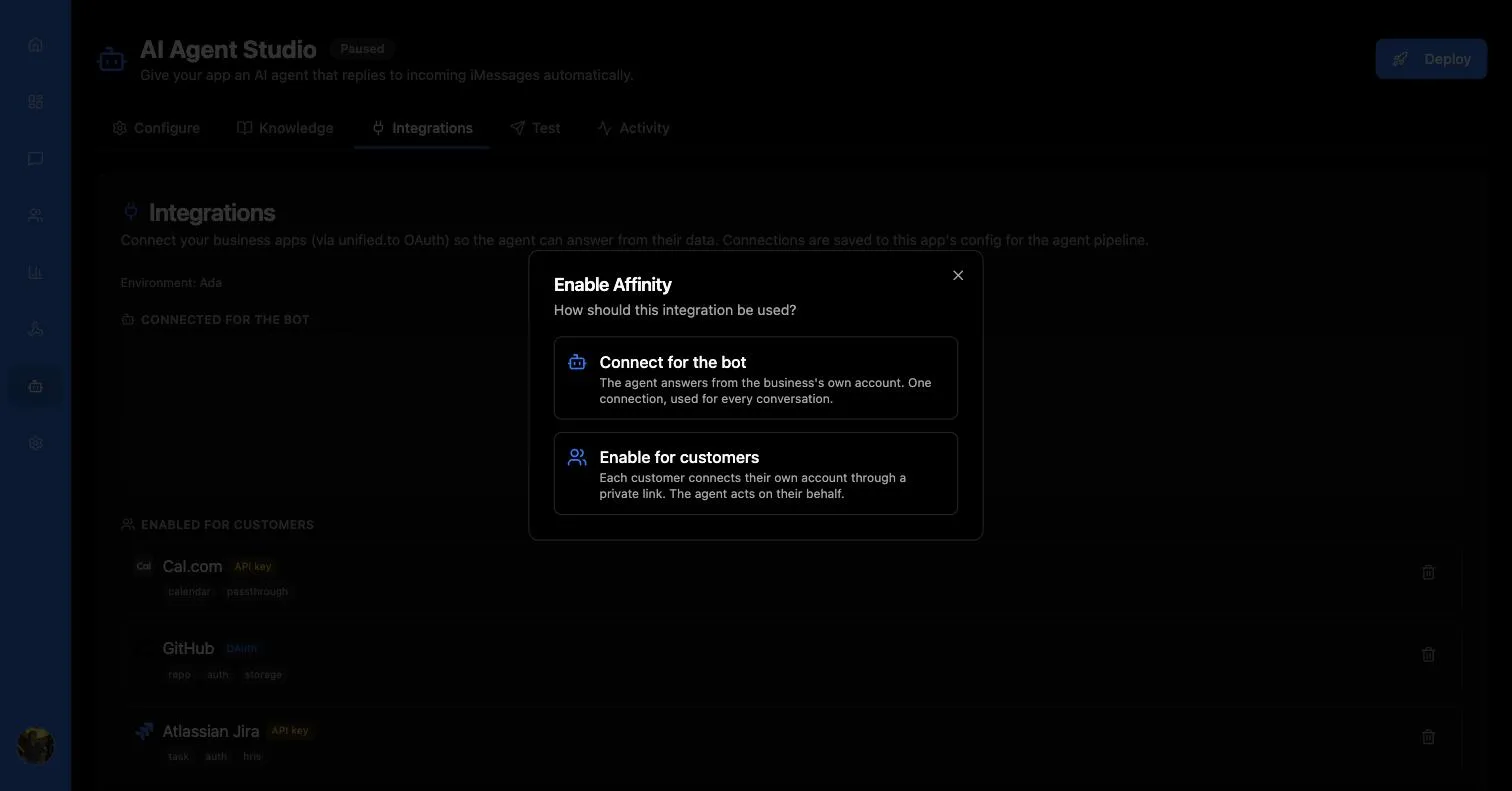
Choosing Enable for customers is what produces the Connect your accounts link you send to a contact.
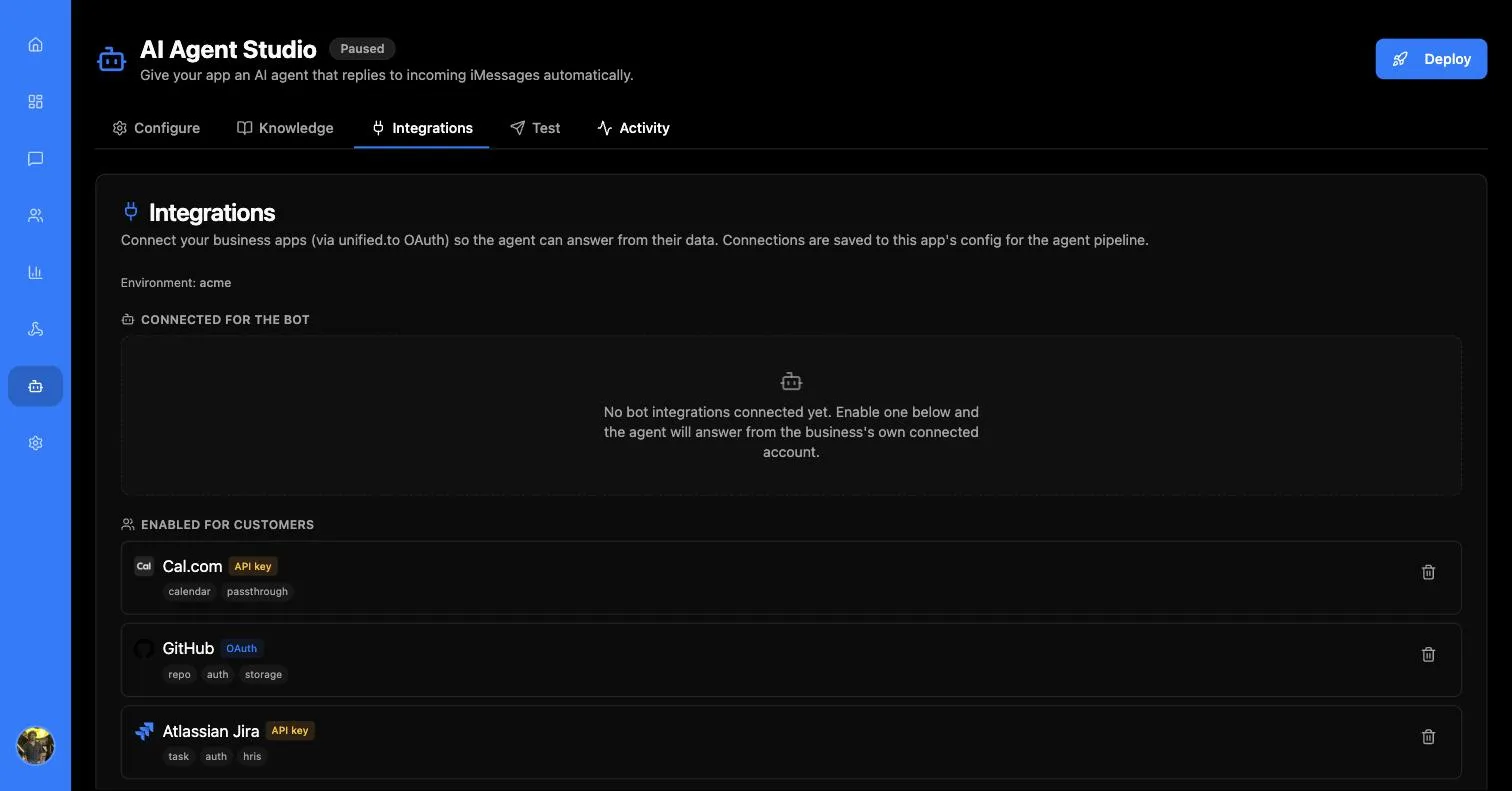
Connected providers are badged with the capabilities they expose — calendar, repo, auth, task, storage — so you can see at a glance what the agent gains from each one.
The catalogue is searchable and filterable by category, and each entry is badged Connects via OAuth or Connects via API key. Refresh re-pulls whatever you have activated in your unified.to workspace — if a service you expect is missing, activate it there first, then refresh.
If the tab says “Integrations aren’t configured yet — add the unified.to workspace + API key on the backend to enable this.”, the environment has no unified.to credentials. That is a backend configuration matter, not something to fix here.
Test
The test bench runs “the latest saved prompt against the app’s knowledge (RAG) — without sending a real iMessage or touching conversation history.”
This is worth reading twice. Testing is safe in both directions: no customer receives anything, and nothing you type here pollutes a real conversation’s history. It exercises the saved configuration, so save before you test.
Type what a customer might send, optionally attach an image, and read the reply.
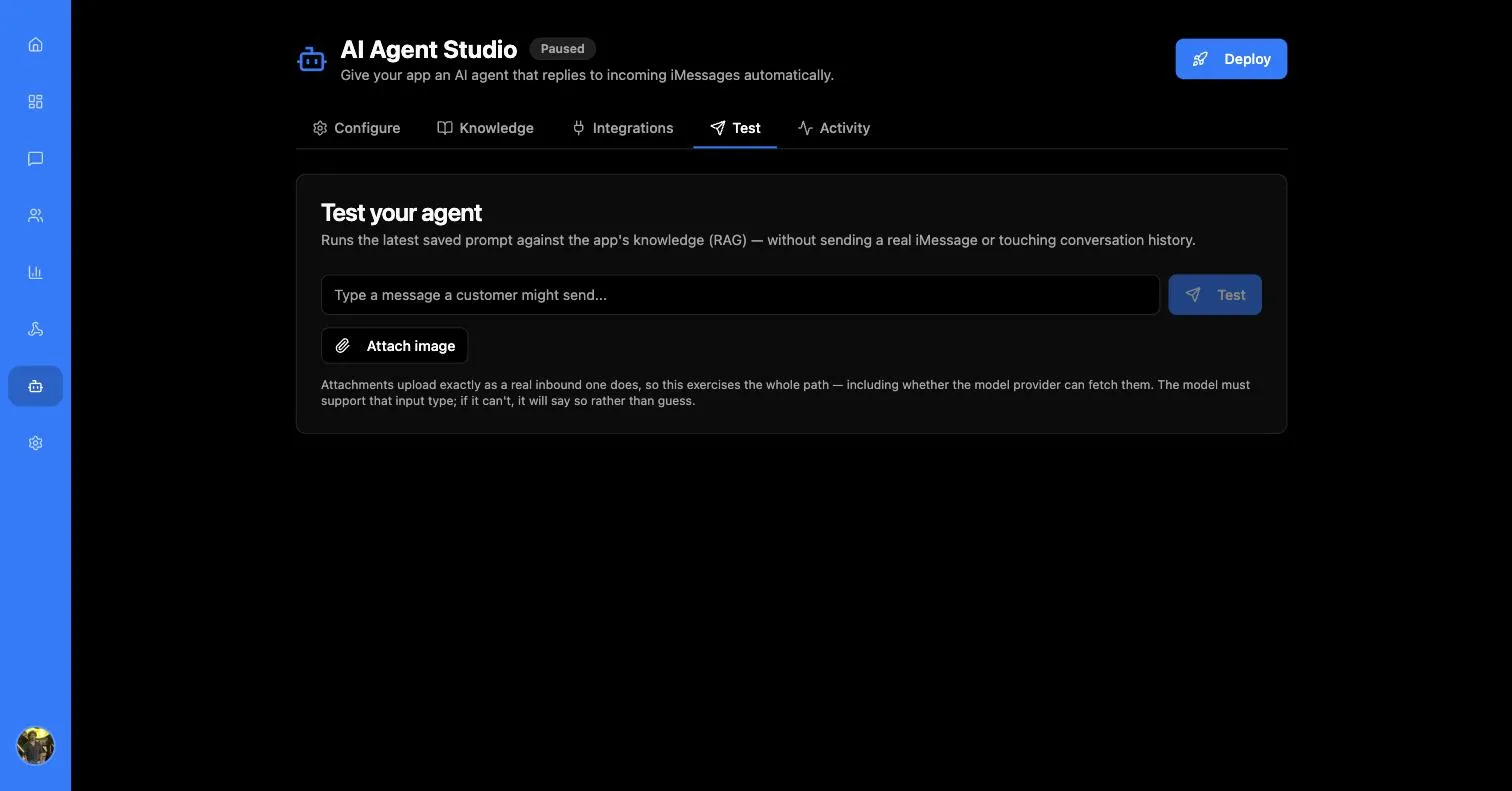
Attachments are not faked for the test:
Attachments upload exactly as a real inbound one does, so this exercises the whole path — including whether the model provider can fetch them. The model must support that input type; if it can’t, it will say so rather than guess.
That makes the bench a genuine integration test of the media path, not just a prompt playground — if your chosen model cannot read images, you find out here rather than from a customer.
Images are supported; voice notes are not. Attaching audio shows “Attach an image. Voice notes are not supported at the moment.”
Activity
A live feed of “incoming messages, agent replies and delivery statuses.” — the fastest way to confirm a freshly deployed agent is actually doing something. A new app shows “No activity yet.”
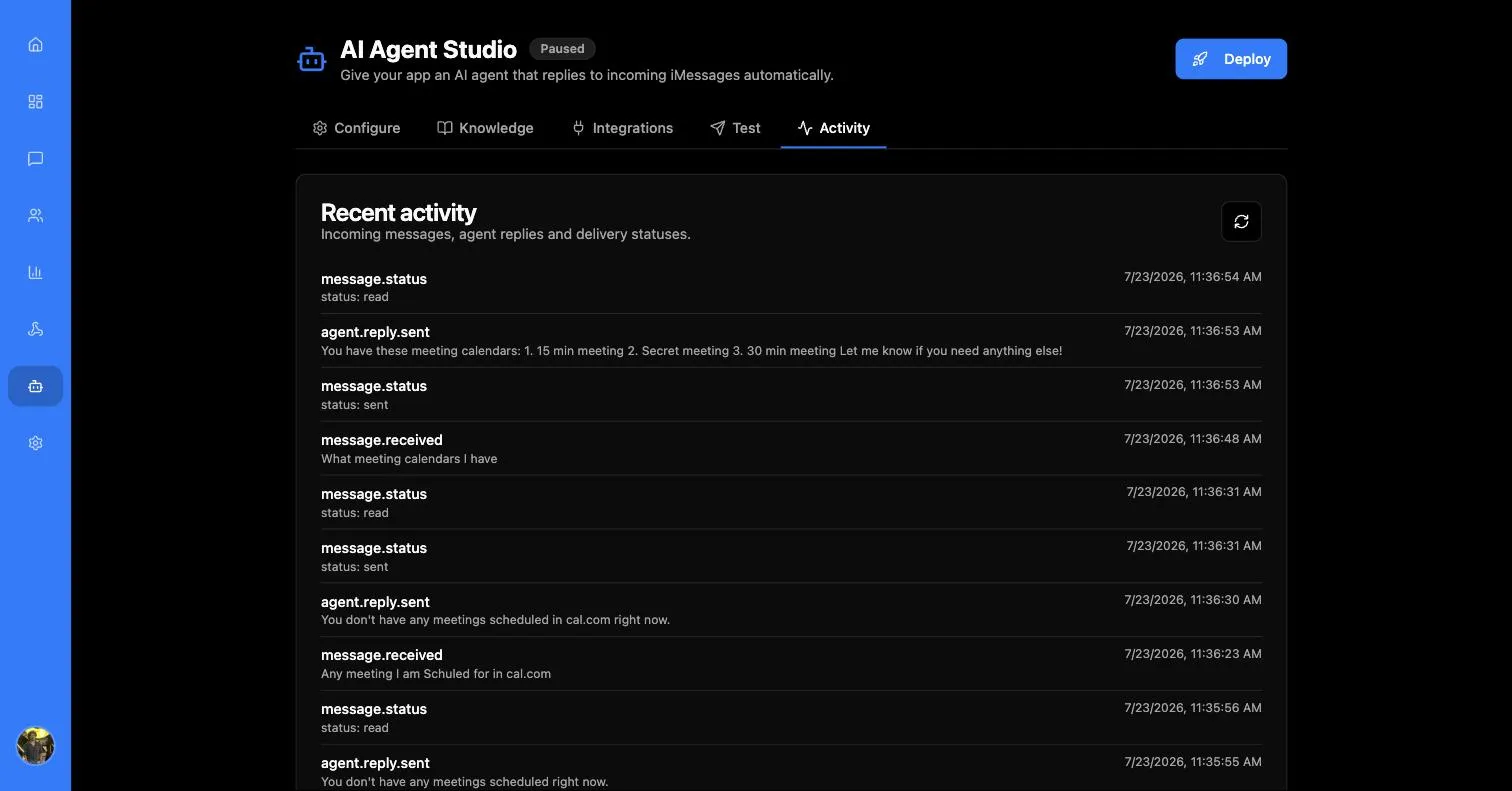
Events are typed, and the three you will see most are:
Reading top to bottom gives you the whole round trip for a single customer turn: the message came in, the agent answered, the reply was delivered and then read.
For aggregate numbers rather than individual events — what the agent is costing you, which models it used — see Analytics.