
Messages
The conversation inbox — reading, replying, filtering and managing contacts
Messages is a three-pane inbox: the conversation list on the left, the conversation in the middle, and an optional contact panel on the right. Everything updates live over a socket connection, so inbound messages appear without a refresh.
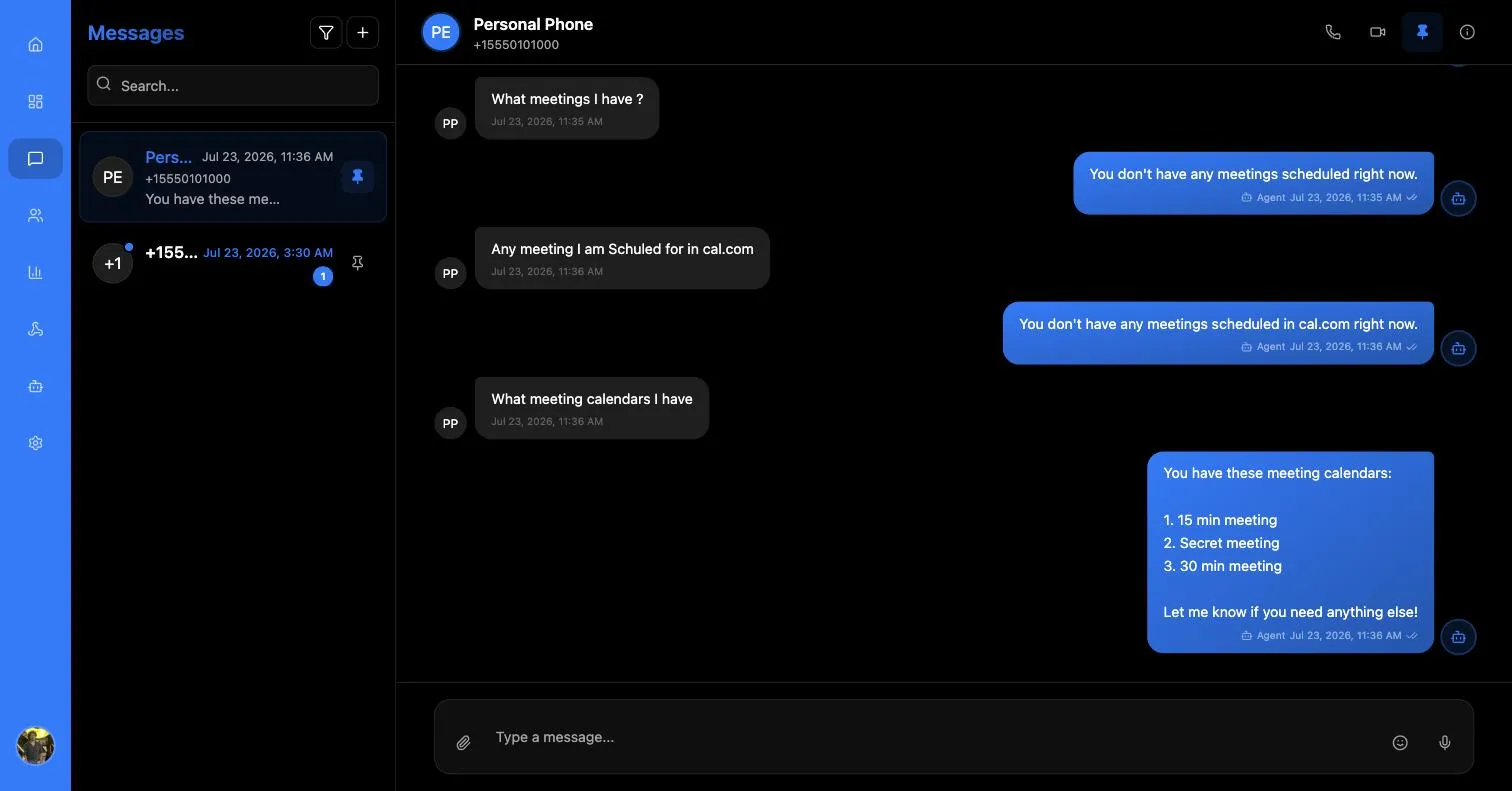
The conversation list
Conversations are ordered by recent activity, each row showing the contact, a preview of the last message, its time, an unread count, and a green dot when the contact’s number is online.
Search and filters
The search box matches on contact name and number. The funnel icon opens filters, which stack — the app spells this out: “All selected filters apply together.”
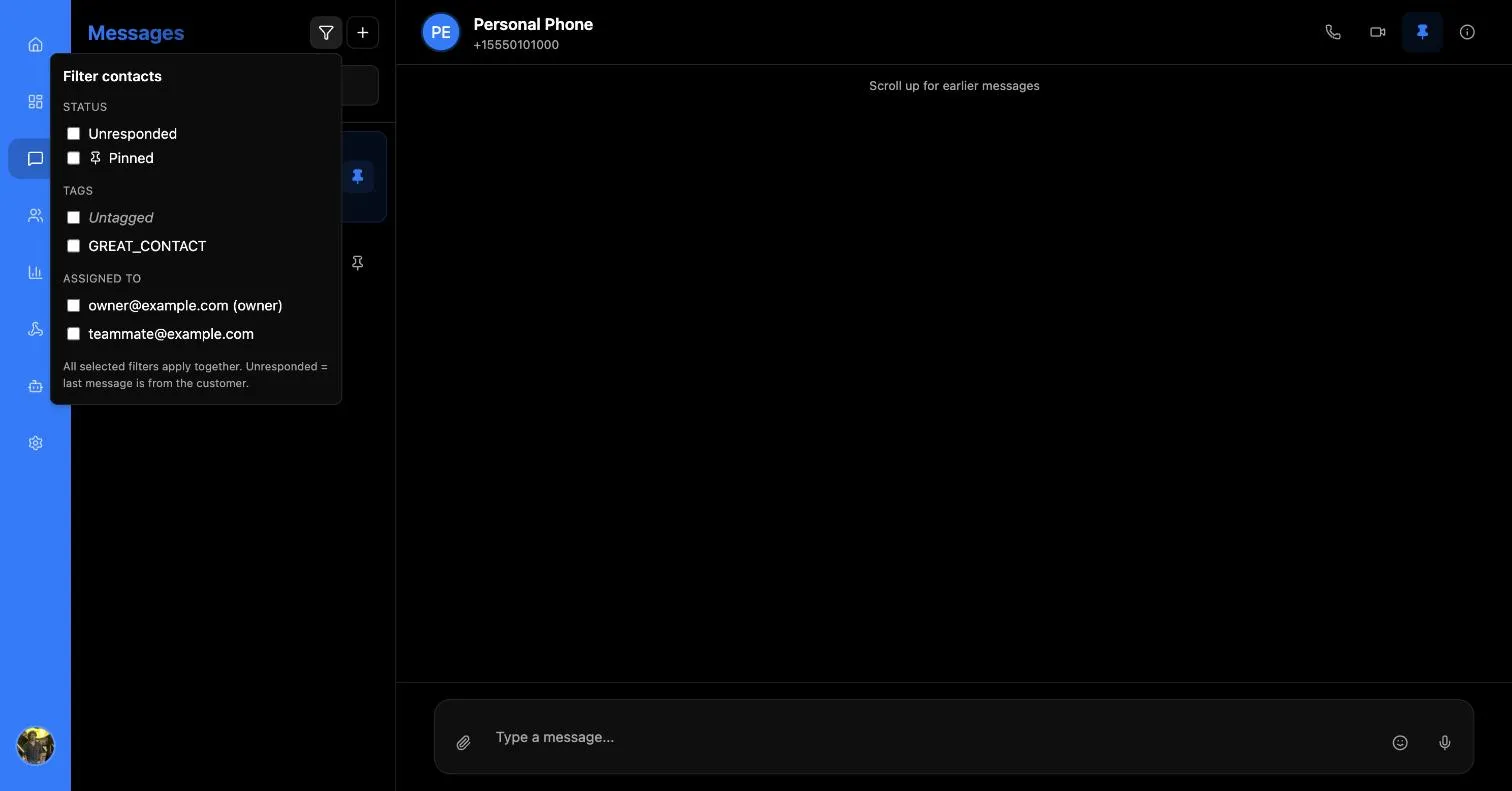
The Tags and Assigned to lists are built from your own data — every tag applied to any contact, and every member of the app. Untagged sits alongside them so you can find contacts nobody has categorised yet.
Active filters appear as removable chips beneath the search box, and Clear resets them all. If a filter combination matches nothing you get “No contacts match these filters” with a Clear filters shortcut rather than an empty void.
Pinning
Pinning a conversation keeps it at the top of the list. The pin control is on each row and also in the conversation header.
Reading a conversation
Messages are grouped under date dividers. Older history loads as you scroll up — a “Loading earlier messages…” pill appears while it fetches, and a “Scroll up for earlier messages” hint shows when more history exists.
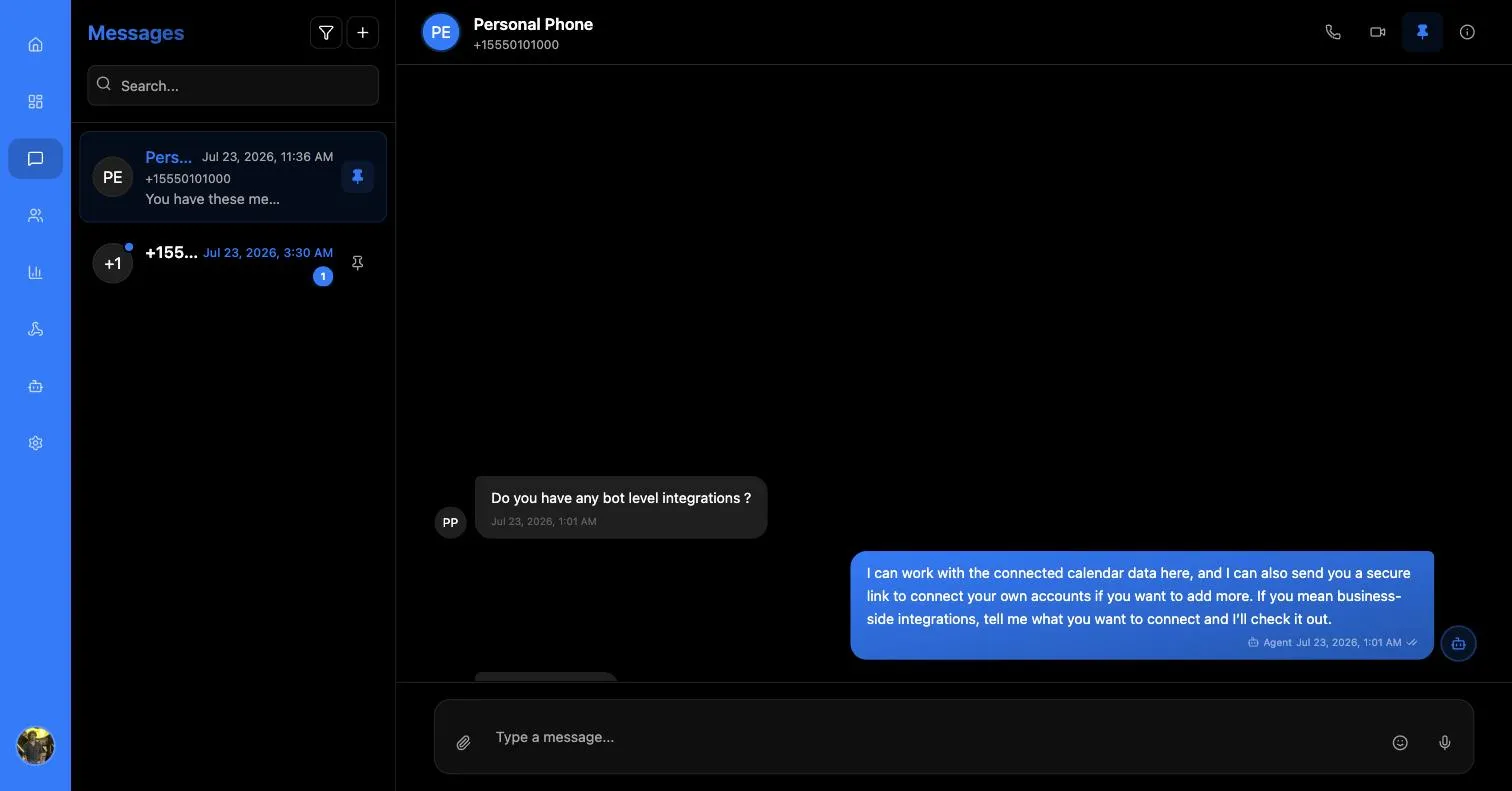
A long-running conversation is not fully in the browser when you open it. If you are looking for something specific from months ago, scrolling is the only way to reach it — there is no in-conversation search.
What a bubble tells you
Outbound bubbles carry a delivery status, and several badges add context:
Attachments render inline. Images open full-size in a lightbox when clicked. Voice notes get an inline player with play/pause, a progress bar, a duration readout and a download button.
The conversation header
The header carries the contact’s name, their number, their online state — and four controls on the right. They are easy to miss, and two of them do nothing yet.
Selecting either call button is harmless; calling is simply not enabled:
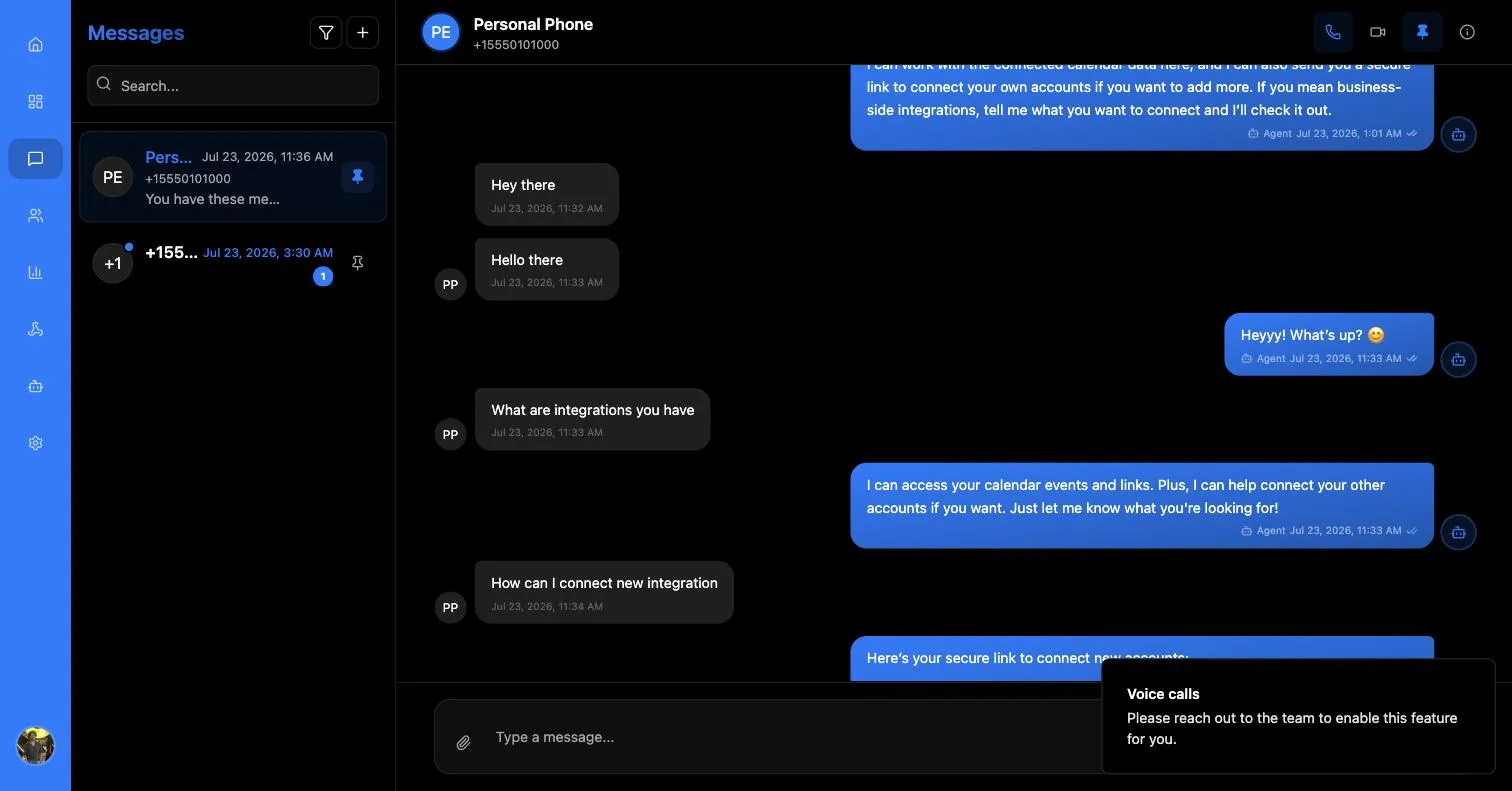
Voice calling is not a self-service feature in this release; the notice is the product telling you to talk to the team. Video calling has no notice at all — the button is disabled outright.
Sending
The composer sits at the bottom: an attach button, a Type a message… field, and send. Attachments upload first and appear as thumbnails above the field with a progress overlay; sending before they finish shows “Attachments are still uploading…”.
Starting a new conversation
New conversation — the + beside the filter icon — asks for a recipient number, explaining: “Enter a recipient phone number. The chat appears in your list after the first message is sent or received.”
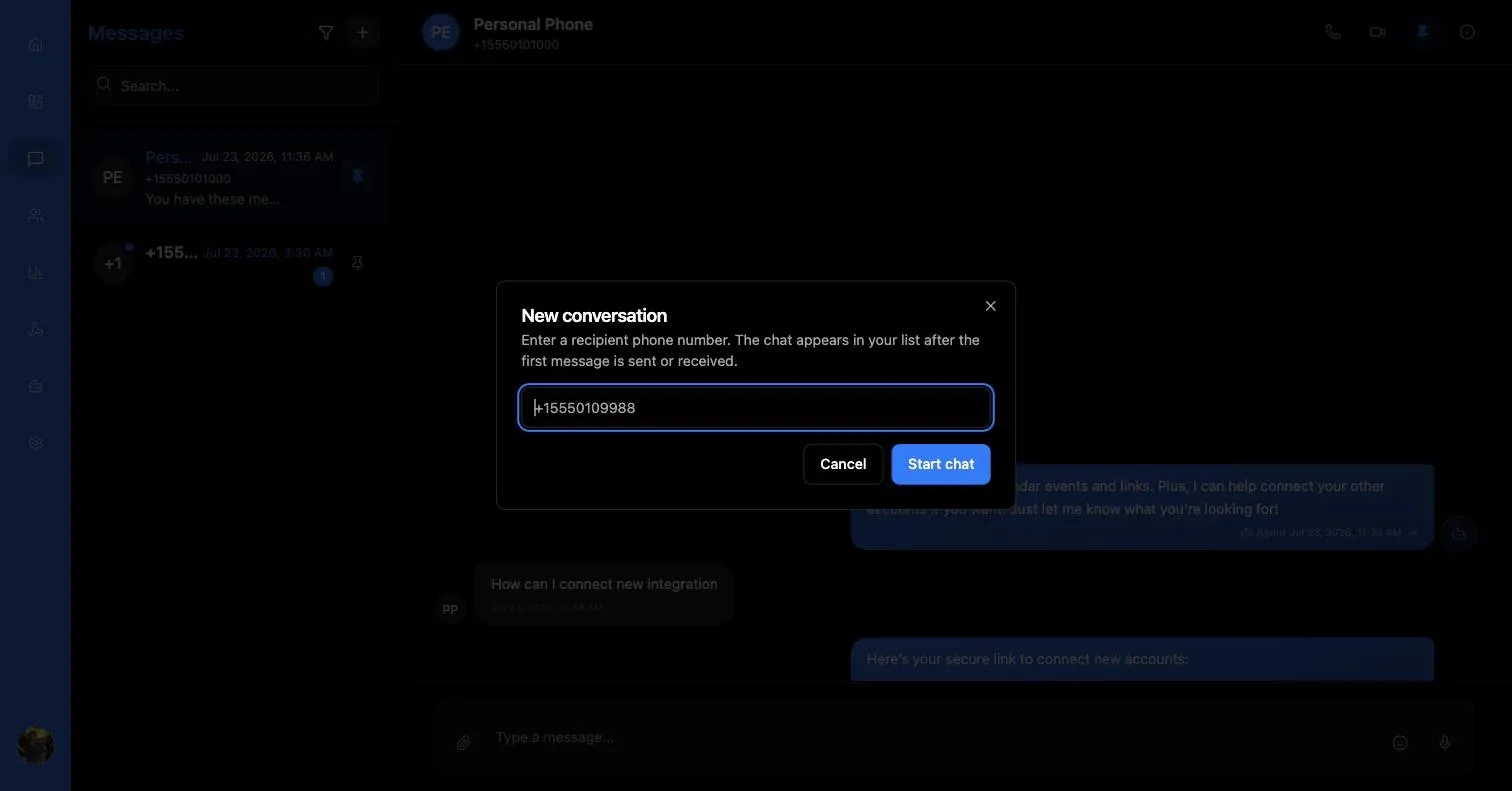
Phone numbers must be entered in E.164 format — a leading +, the country code, then the national number, with no spaces, dashes or brackets. For example +15550109988. The app rejects anything else before it reaches the gateway.
Note the phrasing: the thread does not appear in your list the moment you press Start chat. It appears once a message has actually been sent or received on it.
Four things can stop a new conversation before it starts:
No phone number associated
The app has no number of its own to send from. Request one from the Phone numbers section first.
Invalid phone number
The number is not in E.164 format. The app shows the expected shape: +15550109988.
Cannot create conversation
“This is not an iMessage capable number and cannot create a conversation with a non-iMessage number.” The recipient cannot receive iMessages, so no thread can be opened.
Sending number is offline
The Mac agent behind your number is not currently connected. The message is not sent; try again once it reconnects. Device connectivity is visible in Analytics → Agents.
The consecutive-message guard
Sending many messages to someone who never replies is how numbers get flagged as spam, so the app pushes back:
You have sent more than 5 consecutive messages in a day to this contact without a reply.
You can proceed with Send anyway, but treat the warning as real — this protection exists to keep your numbers healthy.
The contact drawer
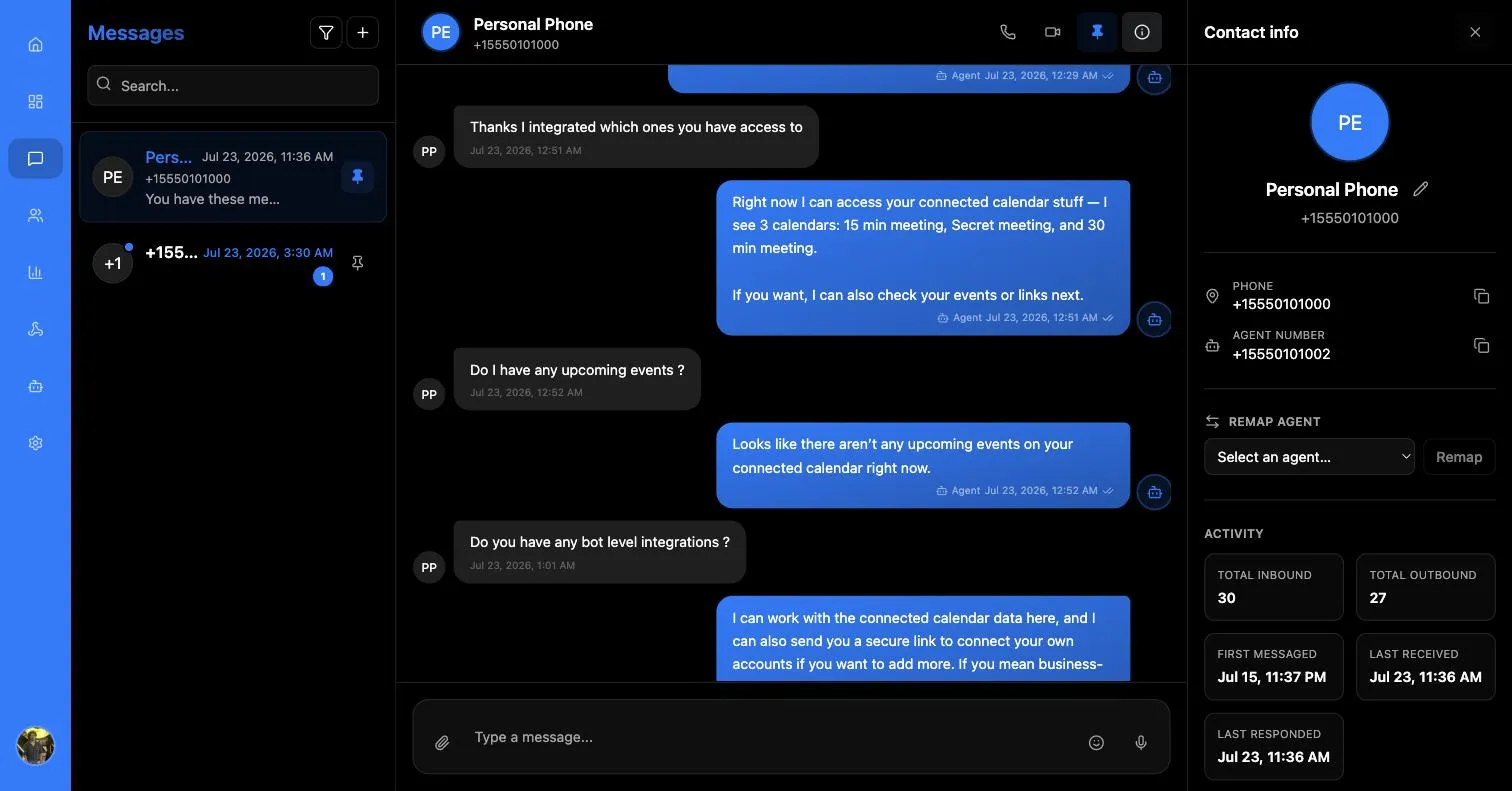
Contact info in the header opens a drawer down the right-hand side. This is where a conversation becomes a managed relationship rather than just a thread, and it holds more than fits on one screen — scroll it.
Working top to bottom:
Identity and copy
The contact’s avatar, display name and number, with a pencil to edit and copy buttons beside both Phone and Agent number.
Editing the name splits into First name and Last name fields. Worth doing: iMessage often gives you nothing but a bare number, and the name you set here is what shows in the conversation list and in Analytics.
Remapping the agent
Remap agent moves a contact to a different one of your numbers. Pick from Select an agent… and press Remap. Use it when retiring a device or rebalancing load. The drawer shows which agent number is current before you confirm.
Activity
Six read-only tiles: Total inbound, Total outbound, First messaged, Last received and Last responded. A quick read on whether a relationship is alive, one-sided, or has gone quiet.
Notes
Free-text notes, each attributed to whoever wrote it and timestamped. Add a note… plus Add note to save.
Deleting a note is permanent — “This permanently removes the note. A deletion log is saved with who deleted it.” The note itself is gone; only the fact of its deletion, and who did it, survives.
Assignment and tags
Assigned to lists every member of the app with a checkbox, with the account owner marked (owner). Tags are free-form: type into Add a tag… and press +; existing tags carry an ✕ to remove.
Both feed straight into the conversation-list filters — that is their whole purpose, so they are worth keeping tidy.
Blocking
At the bottom, and deliberately blunt about what it does:
Blocking makes the AI agent stop replying to this contact — silently. The contact is never told.
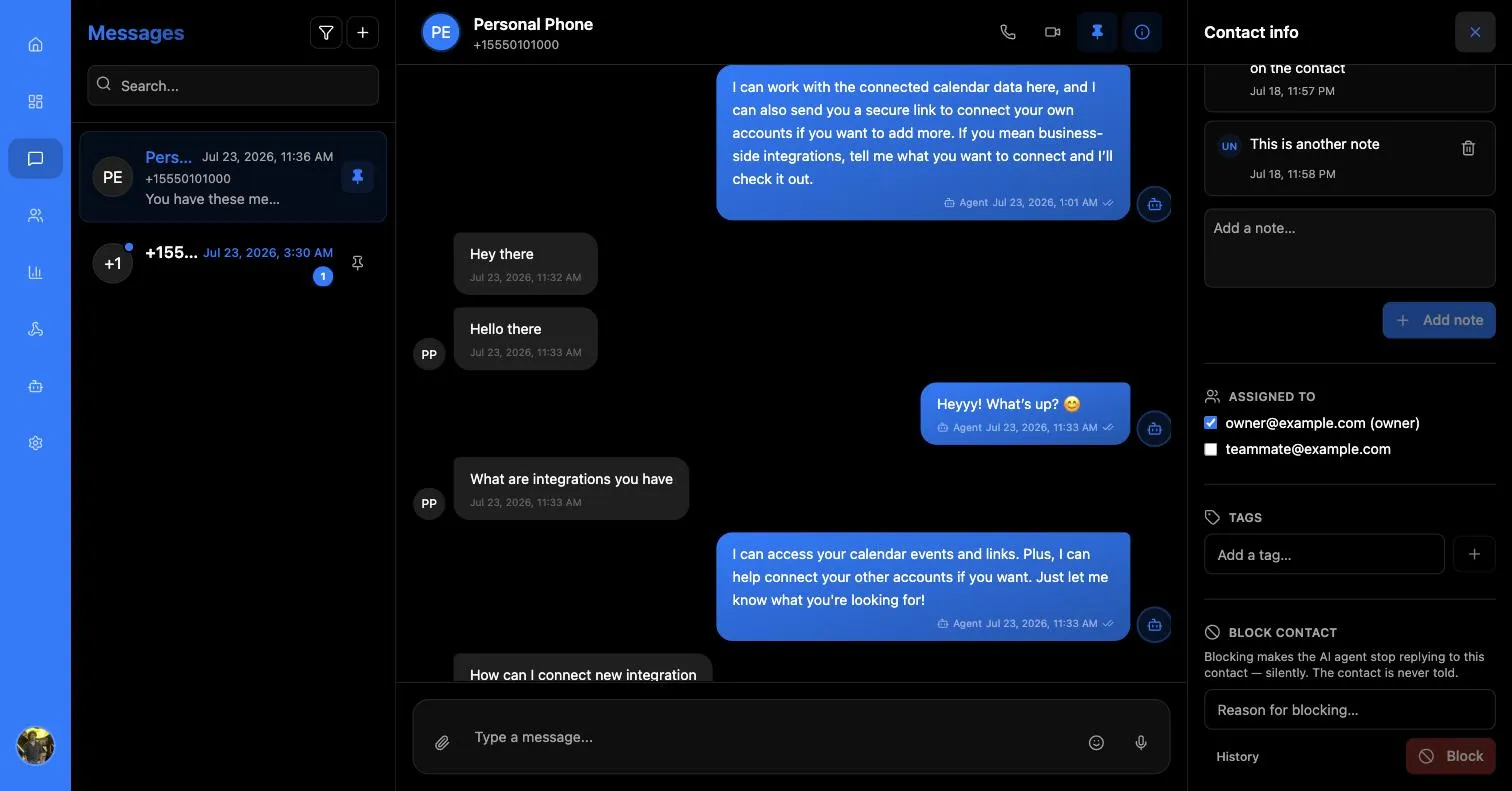
A reason is required in both directions, and History expands a log of every block and unblock with its reason and who did it.
Two things to be clear about:
- Blocking stops the AI agent only. You can still message the contact by hand from the composer.
- The contact is never notified, so from their side the agent simply stops answering.
Blocked contacts are also listed centrally in Analytics → Blocked contacts, which is the better place to audit them.