
Signing in
Authentication, sign-up, and what happens when you are not authorised
Opening app.messageblue.ai takes you straight here. There is no marketing page in front of it — the root of the app redirects to sign-in when you are signed out, and to your apps list when you are signed in.
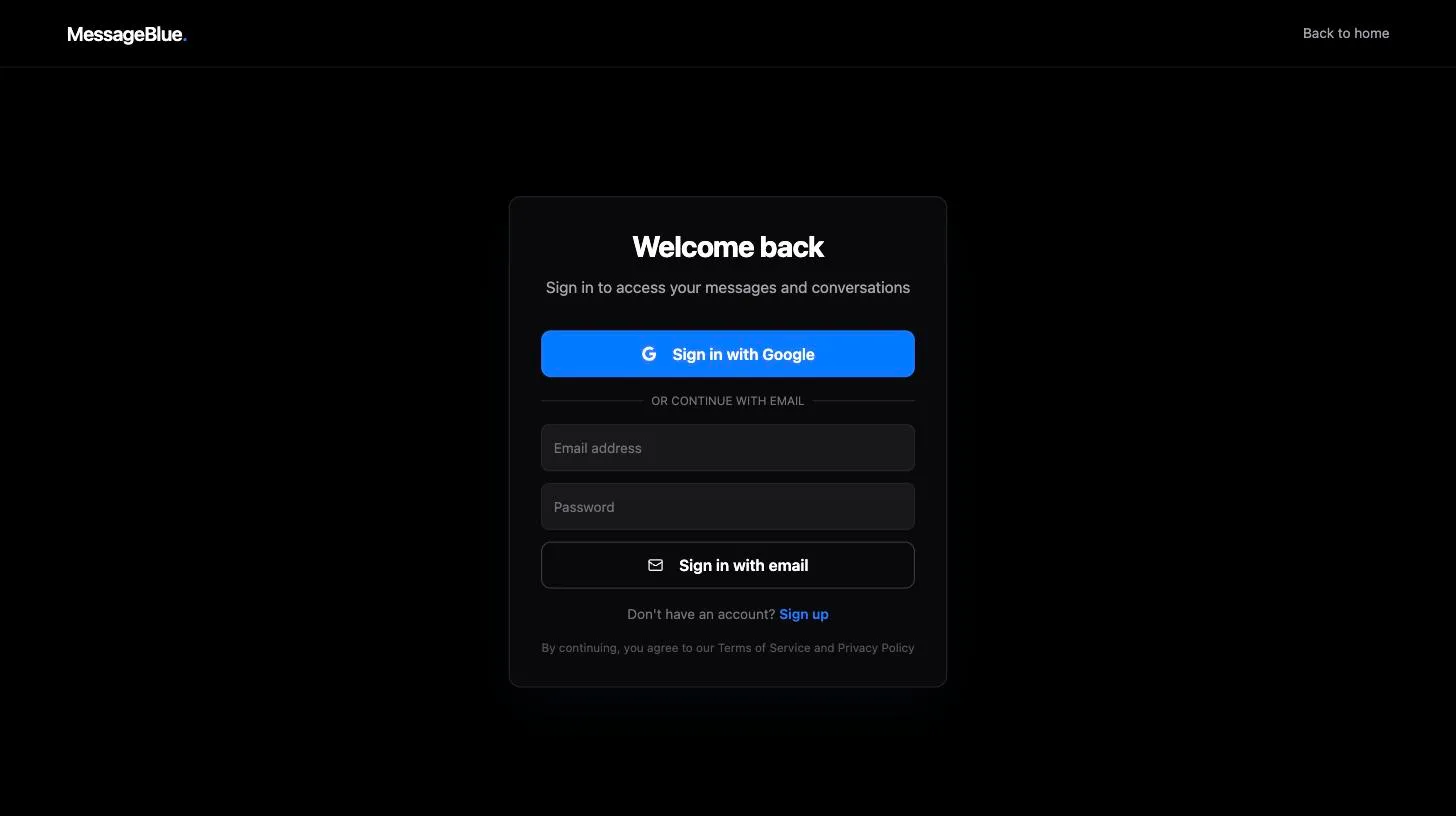
Two ways in
Both routes end in the same place. There is no difference in permissions or capability between an account created with Google and one created with a password.
Creating an account
The Sign up link at the bottom of the card flips the same form into sign-up mode — the heading changes to Create your account and the button becomes Create account.
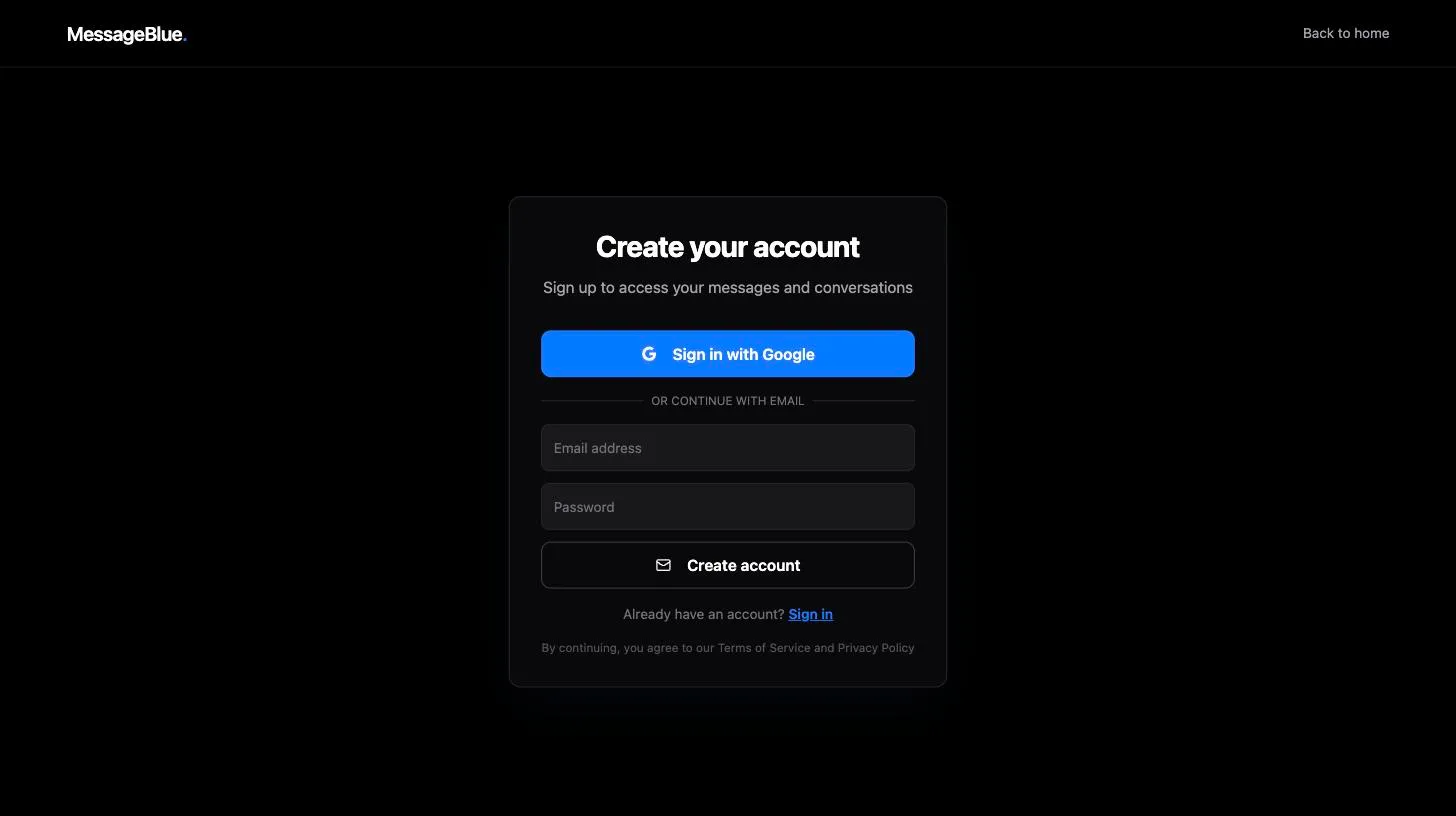
Sign-up is immediate — there is no confirmation email to click and no waiting period. The account exists the moment you press Create account, and you land on app setup on the next screen.
If you arrive from the marketing site at messageblue.ai, the form opens in sign-up mode automatically and carries over the details you already gave there, so you do not type them twice.
When you cannot get in
Two different failures look similar but mean different things.
Sign-in failed / Sign-up failed
A toast with this title means the credentials themselves were rejected — wrong password, an email that is already registered, or a password below the minimum length. The message underneath comes straight from the authentication provider. Correct the field and try again.
Access Denied
You authenticated successfully but the account is not permitted to use this application. The app redirects to a full-page notice:
Access Denied — You’re authenticated but not authorized to access this application. Please contact an administrator if you believe this is an error. Your email may not be in the allowed admin users list.
The Sign in with different account button signs you out and returns you here. This is not something you can fix yourself; an existing admin has to invite your address.
After you are in
You land on the apps list at /apps. What happens next depends on whether the account already owns an app:
- No app yet — an empty state invites you to create your first app.
- An app exists — it is listed; selecting it opens the dashboard.
Signing out
Sign-out lives in two places: the Sign out button in the header of the apps list, and the avatar menu at the bottom of the left rail on every other screen. Both return you to this page.